Smartbox , the makers of Grid 3 are joining the Tobii Dynavox family of AAC as of the 1st October. This is a move to make the company more global and effective. To read more click on the link below:-
Author: AccessAbility Smyles
Specialist ICT SEND Consultant,
Committed Christian,
Loves photography and computing
Plays piano and guitar - both badly!
Fido2 – a new way to logon
Robin Christopherson ( Head of Digital Inclusion), AbilityNet wrote this article about how usernames and passwords should give way to other means. Read his article here at:-
https://digileaders.com/new-log-in-put-end-passwords-good-for-disabilities/
The alternative is something called Fido2 – you can try this out at:-
https://www.noknok.com/trynow/
In essence this is what it does – it uses a range of methods to authenticate

Nok Nok provides a choice of any device, any platform and authentication method like tokens and biometrics voice, face, touch, iris and more. By eliminating friction, Nok Nok will increase user adoption of passwordless multifactor authentication, improve security posture and at much lower costs.
I confess I have not tried this for my site administration so over the next couple of weeks I will research it and get back to you on a blog on this. But it does sound feasible and doable.
When Ease of Access is anything but!
I was helping a client with Parkinson’s recently who had other help from staff and relatives at his care home. It’s interesting that people think that by switching on ALL the access options you are helping the client when in fact you are disabling them!
Spent most of the time switching off options to just allow his speech to control the device. His hand function is lessened as the day goes on to the extent he can’t use a keyboard so some of the options such as magnification and onscreen keyboard don’t help. I also choose a lower resolution to make the screen clearer for the client. I switched off Magnifer(which had inverted the colour to make it doubly difficult to read) and also the on-screen keyboard as he uses his voice to type or a usb keyboard attached to the computer.
Interesting too that the one tool that would be useful didn’t appear on the desktop! Dragon sits in the tray until clicked on. This was another barrier. I had set it to run as a toolbar across the top to enable the client to say “wake up” and control the laptop totally with the one part of his body that works effectively.
Oh well. Onwards and upwards!
News from Smartbox
New addition for Grid ( for iPad) and Grid 3. Click on the link below:-
Using the Echo Dot as an Intercom
I discovered that if you have two echo dot devices you can set up an intercom system between rooms in your house. It is relatively straightforward to do. On the mobile Alexa App Go to settings and change the name of your device from its standard setting to one such as “Living Room” or “Office” or “Kitchen”. Now go to the speech bubble ( message) at the bottom of the screen. You can also click on “DropIn” you will see a list of devices or rooms to connect to. Tap on the one you want to use and voila after a delay of about 5-10 seconds you are talking to the person in that location.
Using the Echo Dot ( or Amazon Echo) it’s even simpler. Just say your wake word ” Alexa, Drop in Living Room.” The device ring becomes green and in about 5-10 seconds you are connected. That simple!
You might hit a problem where the device says it can’t find the”contact” then all you have to do is go through the setup on the device again and it seems to reconnect ok.
To help with doing this here is a short video to explain it:_
Do Not Disturb feature on the iPhone – maybe not such a good idea!
I had been puzzled for ages why my iPhone was not allowing calls and sending them to voicemail immediately. I had checked all the usual settings, My voicemail settings, the Phone settings. I could not see what the issue was.
Then I remembered that due to an important meeting I was in I had activated the “Do Not Disturb” function on the Control Panel:-
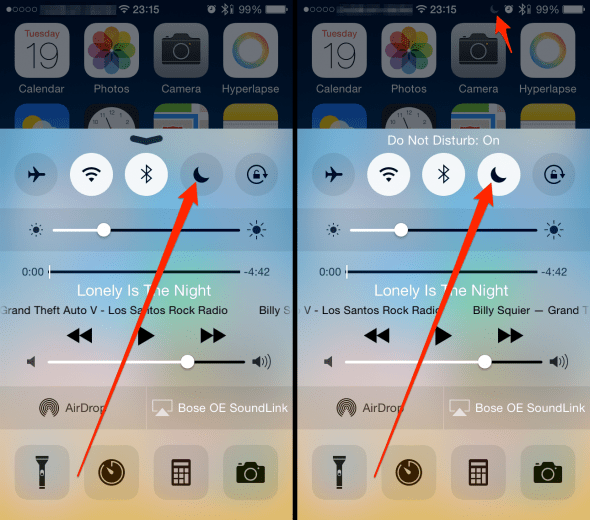
Now this caused the problem. So beware accidentally switching this feature on because any incoming calls will go straight to voicemail. Due to this I am not sure its such a great feature to have so visible on the phone. Why not keep it in Settings and not on the control panel.
For more information about this feature go to:-
https://iphone-tricks.com/tutorial/205-how-to-set-up-do-not-disturb-on-iphone
Amazing story of trapped in syndrome
BATA Forum
The British Assistive Technology Association has launched a new feature – BATA Forum. The Forum is a safe place to post questions, ideas, thoughts, discussion and problems to solve. It is there for free discussion and our members will respond with expert , specialist advice. The Forum is free to access with no complicated membership just a google account or even none other than an email.
All we ask is that people are polite and kind in their posts and comments. It is open 24 hrs , 7 days a week, 365 days a year. Why not take a look at :-
Speech input for Widgit Online in Chrome
Just tried this on my chromebook – really good! Here is my first try:-

Now for the offical blurb:-
|
|
||||||||||||||
|
||||||||||||||
|
|
||||||||||||||
|
||||||||||||||
|
|
||||||||||||||
|
||||||||||||||
|
||||||||||||||
|
|
||||||||||||||
|


nasen live 2018
My first time at nasen live and a worth work while conference to attend even though I am not a SENCO I do work with them from time to time. There were useful seminars and an exhibtion of education service providers.
I attended a few talks about how to make sen work and the role of the SENCO in the 21st Century. Making SEN Work provided details of how to implement change which I thought was both practical and useful. The 30 min session on the role of the SENCO in the 21st Century was just getting going when he had to end! Still I did get the chance to hear Dr Sean Bracken on “Quality First Teaching” which is a nebulous term and shouldn’t we all be doing quality first teaching anyway? But Sean was inspirational and engaging and enabled in his 30 mins to unpick it all. Great work Sean! He also spoke about Universal Design for Learning – the last post I sent! How spooky is that?
There were two companies there representing sound fields – frontrow & phonak. It was good to see speech and language companies there as well . Speechlink provide speech and language support through consultation and training. Mable have a 1:1 online support programme for assessing and helping individual speech and language needs.
nisai help pupils who for one reason or another struggle with being in schools – it could be mental health, bullying, all sorts of reasons, They provide an online tool that has been rated “Good with Outstanding Features,” by OFSTED.
It was good to see Crick Software and Scanningpens there also. Do check out there site for the latest updates in AT. All in all a great conference and would recommend others to go in the future as you will learn a lot from it especially if you are a new SENCO. It’s cheaper to attend as a gold member as you get free entry and can take a friend as well! Nasen has online training for SENCO’s and Support Staff and publications to download which is useful.
 AccessAbility Solutions