iSwitch in use

This guide will help you to understand the mechanism of how to use 2 switches on an iPad. I find the way this does it a little bit irritating with secondary menu options which gets in the way sometimes . I wish it could be switched off and maybe it can be

Using ISwitch with an iPad on Two Switch Mode


1 . Red switch 1 is select

2. Yellow switch 2 is in scanning

3. ISwitch (Yellow) is set to scan as well

4. If you try and use the keyboard whilst using switches turn over the iSwitch and press Mode ( picture of a keyboard above it)

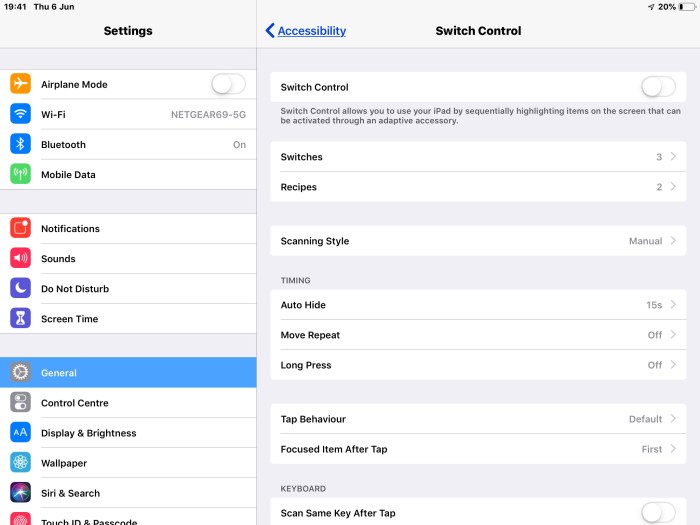
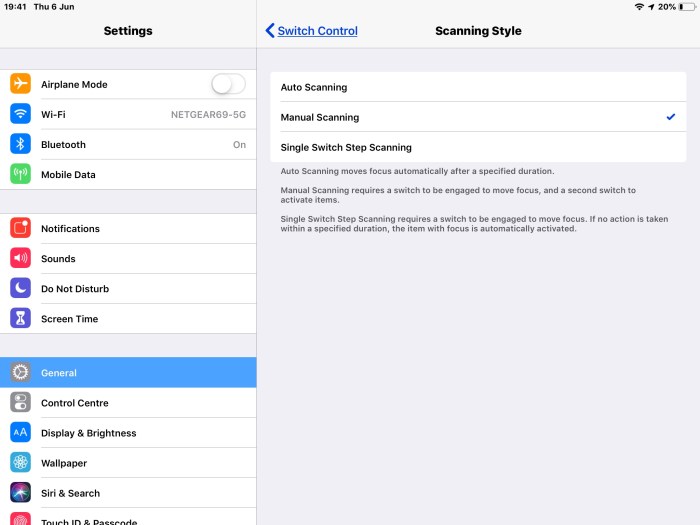
5. You should have the Switch Control set to Manual Scanning for Two switch mode :-


When in Switch control you will find that a blue outline appears around the row of apps or you are in an app the blue outline automatically picks up the different actions needed in the app. Scanning is all about cycling through options. Two switch manual gives you complete control. Easier to operate with i find. The reason being auto-scanning doesn’t work as pupil’s responses are not consistent. So the teacher scans with one switch and the pupil selects with the other.

iSwitch on the iPad or iOS device

For the past few days in preparation for an assessment and training session I am about to do i have been getting to grips with setting up switches iPad. I am using the iSwitch from Inclusive Technology.. Once you understand you need the iSwitch and two other switches you go a long way to understanding how this works. Here are the instructions for setting it up on an iPad :-

Setting up !Switch

1. Turn over the iSwitch

2. Press CHAN once

3. Now go to Settings>Bluetooth and look for

4. Connect till it shows connected

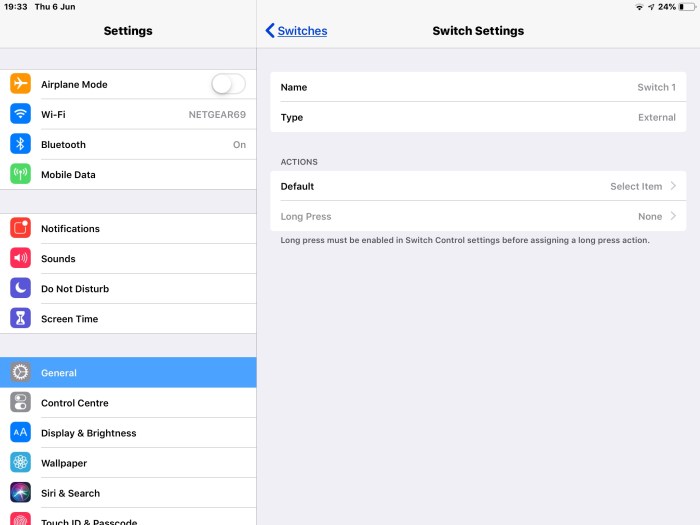
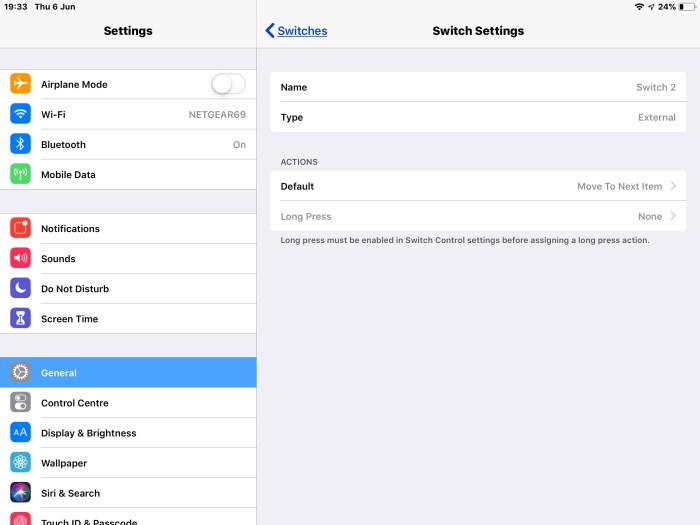
5. Default is set for switch 1 press scanning, switch 2 press select

6. Now go to Settings > Accessibility > Switch Control

7. Then press Switch 1 and ensure it is showing connected

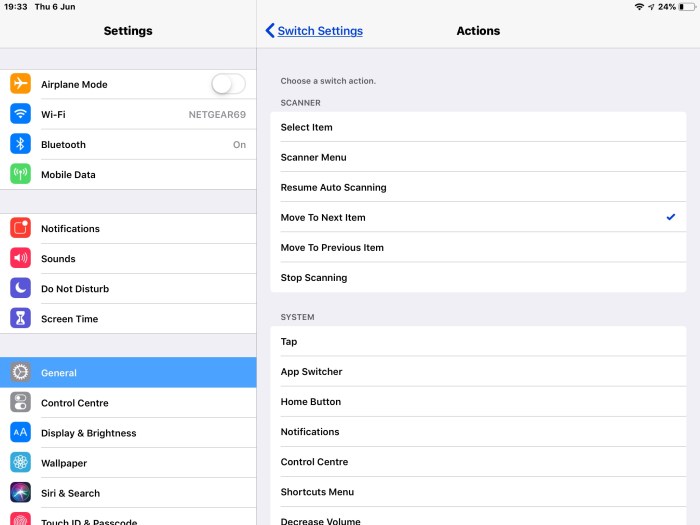
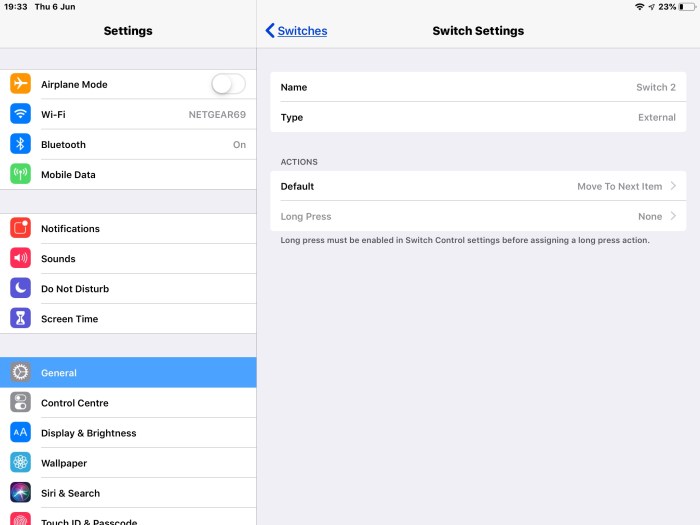
8. And set an action

9. Repeat 7 & 8 on Switch 2

10. It should look like this:-

Apps to Organize your Workload

There is a sudden and extensive explosion in apps designed to help you organize and plan your workload. Trello, Insightly, Brill, Asano, Teamworks, Microsoft Teams. They all have their pro’s and con’s and will be suitable for sen pupils requiring planning and organisation. The apps have clear visual methodology that would help the visual learner.  I like Brill’s simple interface., but beware of in-app purchases, Trello is great for a task orientated project which has a lot of steps or running a project which has to communicate with fellow workers often.

Insightly I have used often and it helps with project deadlines or developing contacts and marketing your services. Whereas Asano, Teamworks and Microsoft Teams are for managers working with teams.  Teamworks and Microsoft Teams are pay for services. Useful for schools, companies and organizations which need to keep a track of projects the teams are working on but at a cost!

In terms of how it could help a pupil who needs organisational skills. Then I would keep it simple and use Brill.  Another option would be Google Keep or Evernote  Google Keep is free and Evernote has plans that can be purchased but you can Basic which is free. It’s a simple idea and can be easily scanned by swiping. Details are added under a specified heading. Deleting is a little bit more difficult but just swipe left and it reveals a bin to get rid of the app. If the pupil is using a mobile this approach is the simplest to operate.

I use these tools as a way of communicating with others as well as planning and prioritizing my workload. Also, for keeping track of information and projects that have been dormant or silent. It’s useful for these and other uses still yet to be discovered.

Google Hangout , Google Chat, Google Meet and Google Duo – which one do you choose?

Seems like you are drowning in choice here for social media tools within the google family. So which one and why? I have done a little research to find out this :-

Google Duo can make only video calls unlike Hangouts, which can also be used for sending text messages. Google duo can make pretty fast video calls and has a specialization in it. Google Duo is a specially designed mobile app unlike Hangouts that can be synced across different devices using a Single Googleaccount.

https://www.quora.com › What-does-Go…

Also, this shows what Google are planning in the future for these apps

https://mashable.com/article/google-hangouts-g-suite-shutdown-october/?europe=true

That time of year – BATA charity walk. Will you sponsor me?

Yes, sponsored walk time again and this time we have three of a member charities to support as we do the Stratford Stroll… well’s it’s more like a hike!

Computing

Lawrence Williams has written an introduction to programming for pupils/students using Python as the programming language. He calls it:-

Literacy from Python

See a sample page:

https://sites.google.com/view/literacyfrompython/chapter-1

Try this out with your students and let me know. I will feed it back to Lawrence.  Understanding how to program makes pupils & students more creative in their ability to make their own solutions in the future.

Autism Awareness Week

To celebrate Autism Awareness Week Christy Clawson (wondermums) sent me links to help with parents and carers


7 aspects of engagement

Seven_Aspects_evaluation_report (1)

The above report which you download from the link is a pilot study done by Prof Barry Carpenter and set of pilot schools. It is based on the Rochford Review and will replace P scales by 2020. So very current. I have yet to read all of this but the outline of the 7 aspects of engagement seems to be logical and works well alongside other work in the Assistive Technology area such as the Switch Skills Progression Mapping  work done by Ian Bean.

What are the 7 aspects of engagement?

  • responsiveness,
  • curiosity
  • discovery
  • anticipation
  • persistence
  • initiation
  • investigation

As they are a progression I can see these relate very well to child development and those with complex needs who may be stuck in one of these 7 aspects. This chart provides and understanding of what these 7 aspects of engagement mean:-

7_Indicators_and_Aspects_of_Engagement

I found this at:-

https://5f2fe3253cd1dfa0d089-bf8b2cdb6a1dc2999fecbc372702016c.ssl.cf3.rackcdn.com/uploads/ckeditor/attachments/3561/7_Indicators_and_Aspects_of_Engagement.pdf 

I will give this more thought and then see how to adapt my App Mapping Sheet to incorporate it.  First, I need to get to grip with the concept and take it from there.

Echo Connect

410JvlJcwoL._SY300_

The Echo Connect is a device that uses the Echo Dot and Alexa device to link to your landline. Freeing up your hands to use your voice to answer and make calls. It was quite frustrating to setup and we did struggle to get it going and I still don’t know what i did to make this work! I will investigate further. Another useful feature is it’s able to cope with automated phone systems ” Press 1 for Insanity” type systems.  Google Mini can’t do this and leaves you unable to navigate them without pressing keys. 

For blind and partially sighted users this is a great addition. Phone calls can be answered anywhere in the house where the user is. Especially if you have more than one smart speaker (Echo Dot) . For £39.99 it’s very affordable. But I would warn you to make sure you set up on the Alexa app and also to change the language set as this seems to affect its functions in the UK. Change it from US to UK and it sends a file down to convert it to the UK settings. That is one thing I think may have caused it to work. But not sure! Will research further and get back to you. 

AMAneo BTi – Mouse Adapter

This innovative adapter means that you can access an iPad or iPhone with any mouse, including assistive mice like a head mouse, thumb mouse, rollerball or joystick. It’s a world first and it has the potential to enhance the way that users experience technology. Get ready to make everyday interactions like connecting with friends, browsing the internet, and playing games so much easier.

Click here to view the product and watch a video:-

AMAneo BTi Mouse