Sally I have known of for more years I care to mention. Although not close buddies I respect her as a fellow colleague and someone who has been around long enough to have real insight and vision. Therefore, when she chose to follow me on Twitter I took a look at her website: http://sallymckeown.co.uk/index.htm and was pleasantly surprised. It’s not showy or busy (unlike mine!) well structured and well written it says what she needs to be known and clearly points the way to help from her. Great job, Sal! Love it’s simplicity!
Author: AccessAbility Smyles
Specialist ICT SEND Consultant,
Committed Christian,
Loves photography and computing
Plays piano and guitar - both badly!
QuadMedia – multimedia quadblogging
Just made this short video explaining my concept for engaging learners with additional needs in making their own animations, etc.
Quadblogging – what is it? what can it do?
I need to let David Mitchell, deputy head from Bolton – a town I went to school in last century, home of Peter Kay! David can explain what quadblogging is. It’s about interaction between four schools:-
What can be achieved well it gives creative a chance to develop ideas that open the classroom up whilst developing writing skills.Listen to David Mitchell again speaking about how effective quadblogging is for creating audience and for changing lives:-
David Mitchell on Quadblogging
I was intrigued by the lad who said it had changed his life from all being in detention to speaking in front of lots of people. Engagement is the key – maybe it was doing something new. But the power is in the audience.Isn’t that why Youtube and Facebook have been so fantastically popular? So how do this apply to pupils with additional needs? Maybe the concept should extend to QuadMedia -where tools like Greenscreen, Touchcast, Periscope can be the focus for schools to interact not just with text – but all the tools of the toolbox! Certainly there is high engagement and interaction. Sharing both locally and wider afield would be great. So as of today if you or some school you know what to engage interactively please contact me via the website here and I can set you up with the skills needed to access the above tools and create a forum where we can share multimedia – kind of a safe youtube but more types of media. I will run through this blog to begin with but later may develop its own identity if it takes off!! So contact me on this site at https://aas123.com/contact-us
Windows 10 TV Advert
Just witnessed a cheesy advert for Windows 10 tonight. Not sure those kids are still going to be using Windows 10 – more like Windows 20 !! As my pen has just given up the ghost for my Surface reliability will play a part in this brave new world of Microsoft. Anyway judge for yourself:-
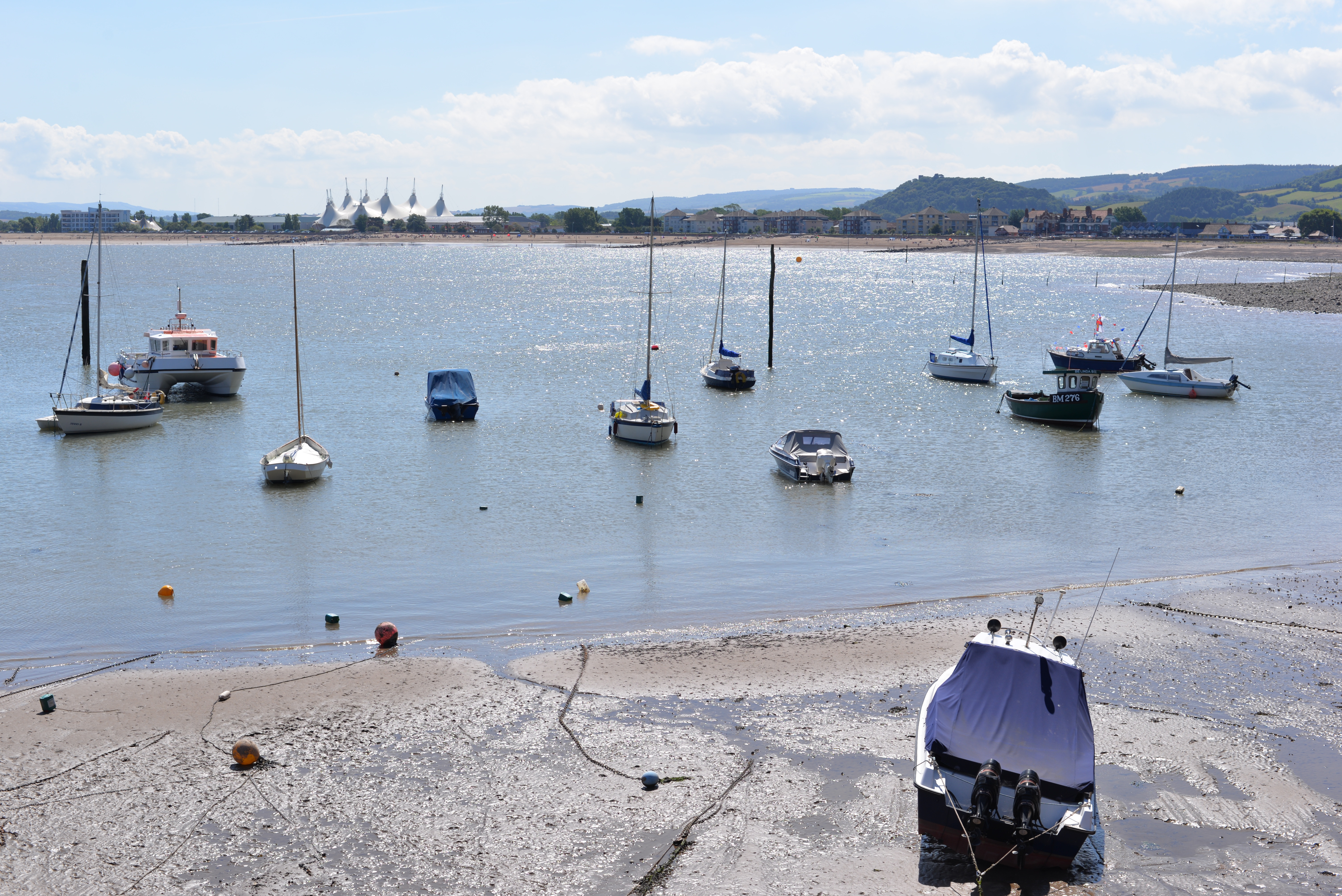
The Harbour, Minehead
Try this for a resource bank!
This looks interesting as well. A one stop shop for all things sen. And you can add your own resources there as well.
What a good idea! http://dyslexiadaily.c
What a good idea! http://dyslexiadaily.com/learningdifficultiesdirectory/
http://ow.ly/QADvu
Bing search engine & tab display

Bing has made improvements over the last few months. Create a tab setting http://www.bing.com and sign in to your Microsoft account. I particularly like this screen where all your tools are easily accessed in one place on the screen. If you have organisational difficulties this could be useful to you. Also, the backgrounds are often animated gifs which make a video of the background – to see what your background could be you can cycle through using the forward and backward arrows . Very slick and cool! And in doing this I needed to know how to take a screen shot on a chromebook. Not obvious as their isn’t a key on the keyboard. Answer is CTRL and the multiple windows key above numeral 6 on my keyboard. Also just seeing the whole screen is possible ( like f11 on a windows pc) by pressing the full screen key above numeral 5 on my keyboard.
The Edge – new browser with Windows 10 and SEN
In its trial form I wasn’t too impressed with the edge but now that Windows 10 has been released that are many features that I like that would benefit pupils with special educational needs. The clear size and text is helpful and on a tablet the swipe and navigation becomes very intuitive.
Address Bar
Is wider and clearer text for those with visual needs making it easier to see what the address is. Bing has become more intuitive too and predicts what you most likely would be looking for.
Speed
It’s much faster than previous internet explorers. Less waiting and more instant would help pupils who become impatient or easily frustrated. It is now faster than Chrome which I rated one of the fastest browsers until recently.
Integration with OneNote
Really useful for users with a stylus but is possible with users on a touch screen. The Edge is billed as being the browser for research so being able to annotate pages and save then to one note easily would benefit settings using Classroom OneNote where work can be shared.
Classroom OneNote
Is a free app linked to a live account for Office365. It allows teachers to create resources where students can add and share their ideas to. Joint project research on any given topic would enable work to be collected and set jointly by pupils and staff. The integration with the browser will really make this possible I think. Less things to worry about and instantly available to everyone working on the same network. Ideal for secondary settings. This alone will help to innovate schools who want to make us of cloud based learning with their mobile technology.
Share button
This is intuitive to. As I write this article I am offered apps that would work with the writing of this blog. Meaning my work can be shared with more than one application and therefore more than one use. For instance I could share this article with my online storage so I keep a copy or I could create a unique QRcode that could refer to this article . All by clicking on the share. In fact to prove the point I will share this as a QRcode which I will include as a free link to a useful resource now.  . I used Elecom QR code for Windows which allows me to save the QR code to a dedicated picture folder and then I upload directly into the article. This could work on any application I choose to use.
Bookmarks
Those websites you want to keep and use can be easily imported into the Edge via the hub favourites . Bookmarking a website is as you would expect using the star.
Settings
Also from the same hub that we found bookmarks you can also change the look and feel of the browser easily . There are light and dark skins and also you can have different size fonts for reading up to extra large. These globally change the browser on restarting the Edge. It doesn’t change the colour of the reading pane which might be a useful addition to aide pupils with dyslexia to make it easier to read .
Home button and Tabs
The home button can be set on the icon bar which I find useful to return to my preferred search engine which has been google but with this browser I will continue to try Bing which appears to improve all the time. You have to click on Advanced Settings to change the search engine. I do love the Bing search window which has some useful tools for me all in one place along the top with the tabs. And I love the animated gifs they use as backgrounds which makes it all look very cool!
All in all I think The Edge is a big improvement on previous Internet Explorer browsers and would recommend it as an access tool for those with special educational needs to use.

