https://www.podbean.com/media/share/pb-k773u-e731c8
The first of its kind done in the UK ! This will provide a comprehensive list of aids encompassing all parts of the AT industry
Author: AccessAbility Smyles
Specialist ICT SEND Consultant,
Committed Christian,
Loves photography and computing
Plays piano and guitar - both badly!
Grammarly
Grammarly is a useful assistive technology app for supporting students and pupils. It helps by suggesting better grammar, checking additional spaces between words, correct spellings, and the bit I love being able to suggest links for adding to your blogs and documents. I find it good that you can be looking for a particular app or hardware and Grammarly will find that item. It sits on the sidelines waiting to be used.
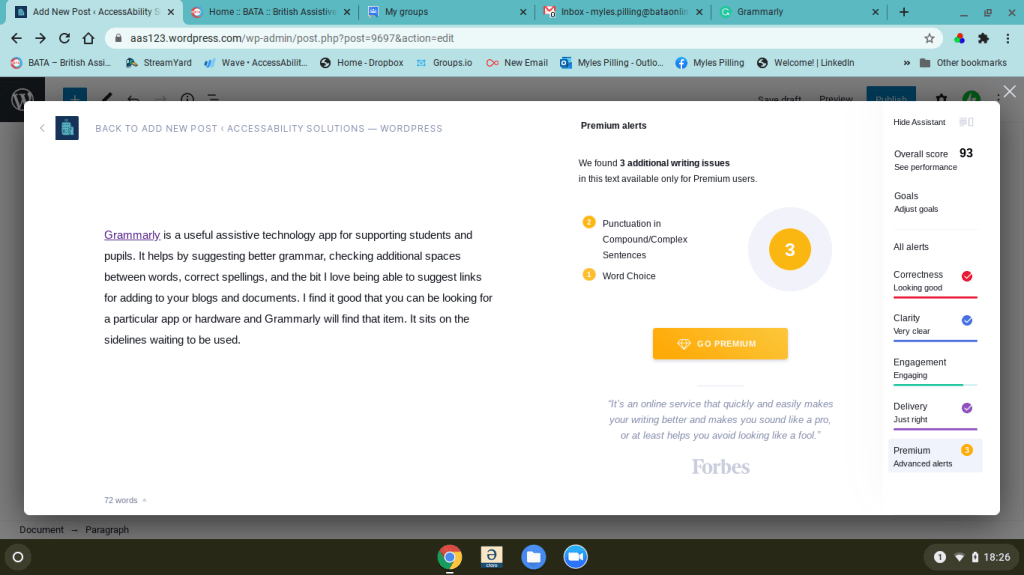
It’s also a good learning tool. I did struggle with plurals on nouns eg batas online groups. It can also score how well you are writing. It works on a principle I love which is you learn by what you write and this supportive software not only helps, advise it teaches as well!
Websites, Domains and Email
In the past I have set up websites for people. Making them is relatively straight forward but hard work nevertheless. The tricky bit is the hosting of it. You enter the world of SSL Certificates, Domain Names and Renewal. It’s hard to know what you are paying for. Often there is a deal on offer and then after the specified time it changes. Beware of the on costs you migtht incur.
So how much does this all cost? For a certificated site with email and domain name it can cost £100 a least, £1,000’s if you employ a website designer. There are so many aspects to consider :
- Website designing & building costs – self built or web designer
- Domain name purchase – unique name, often more than one to ensure your brand is protected
- Email service to the site – so you can be contacted directly usually info@ ………
- Domain Certificate – added protection from people taking your web domain name
- SSL Certificate – google security to protect the site and make it bonafide
- …and so it goes including SEO’s for pushing your site up the search list
The language is technical and full of jargon so it is wise to talk to a web designer or someone familiar with doing this to ensure you get the right set up for you. If you consider building the website yourself you will save a considerable amount of money. But seek advice on it. All I will say is website developers know what they are doing and can ensure everything works smoothly and properly after your launch. It’s a service worth paying for to have exactly what you want.
Episode 35 – Google Keep
https://www.podbean.com/media/share/pb-crafx-e60fef
Wonderful app for dyslexia. Now with dark mode for those with visual impairments
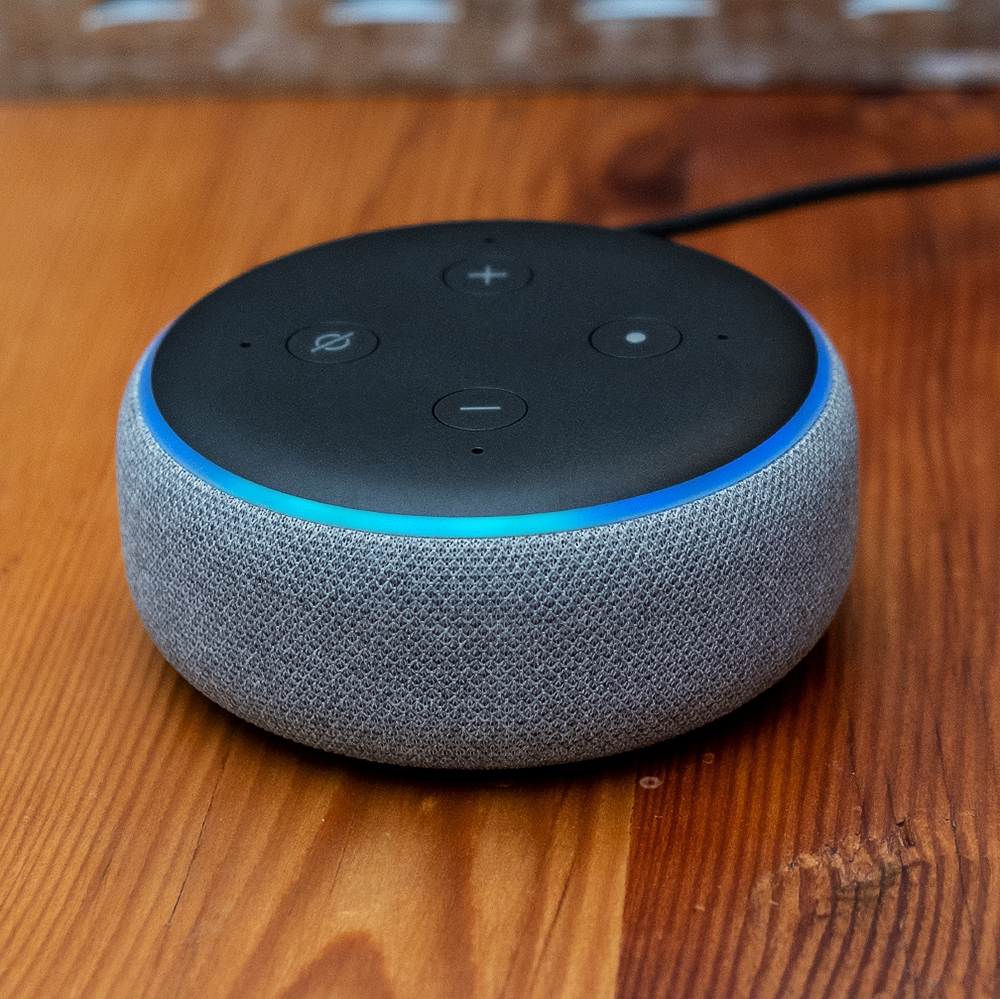
Amazon Echo Dot (3rd Generation)
One of my clients wanted to upgrade from 2nd Generation to 3rd Generation device. It seemed to work at first and then we discovered a problem with Amazon music. She has the single device package at £3.99 which means you have to attach the subscription to a single Echo Dot. Obvioulsy we had it set to the previous device. I looked at the app first and then the online account – although I did find the Amazon Music settings on the account via amazon.co.uk I could not finda way to change the device.
The Solution
The solution was to ring this number +353 (800) 4961 081 for Amazon Customer Services. They answered the phone straight away and a helpful guy called Josh helped solve the problem which needed several attempts before getting it right. It seems you can’t do this yourself – I tried to find a solution and failed_ so the answer is to ring them.
In Conclusion
The client and I discussed that this would not be problem for music unlimited users or prime users as the devices don’t need to be “attached” electronically this way. Only the single users would have difficulty.
Episode 34 – Sero
https://www.podbean.com/media/share/pb-4xibd-e5197d
Screen reader and media platform for the blind from Serotek
Episode 34 Sero (The Smyles Podcasts)
www.podbean.com/ei/pb-4xibd-e5197d
This is a subscription-based screen reading and content-rich product for the blind. In this podcast, we consider it’s features and its access, including some of the difficulties on access using Dragon Dictate.
Personal Development & Assistive Technology
YouTube clip (1hr 20mins)
Take-Aways from the Video
- Natural Reader :– https://www.naturalreaders.com/ upload text or documents to be read back or played on an mp3 player
- Audible on Alexa – ” Play my book” command will play any audible book that is published on Kindle app.
- Easy Reader app – https://yourdolphin.com/en-gb/products/individuals/easyreader-app
- vBookz – PDF reader in 17 languages ! https://apps.apple.com/gb/app/vbookz-pdf-voice-reader/id489447533
- ReadWrite (by TextHelp) – https://chrome.google.com/webstore/detail/readwrite-for-google-chro/inoeonmfapjbbkmdafoankkfajkcphgd
- My Email (Alexa Skill) – use your voice to write emails
- “The Smyles Podcast” – http://smyles.podbean.com
Useful Websites
http://abilitynet.org.uk – AbilityNet helping elderly and disabled people
http://bataonline.org – British Assistive Technology Association
Tip 1
Get organised – lots of tools out there that can help you work more efficiently – more collaboratively.
Having trouble remembering that password? Go to your emails and search for the item by its title and find out what email address you used. Then search for your joining up email, Then you can either see the password or have a reset of it.
Google stores passwords ( if you want it too) and you can then search and access them ( with your google account password) so that you can see the password you set.
Alternatively keep a hidden file on passwords or use 1Password
Trello – is a project tool that helps you collaborate and inform on products.
1Password – is a subscription based password storing tool on iOS, Android, Windows,MAC. It will store your passwords and with biometrics keeps your passwords secure
Tip 2
Use the assistive technology that is under your nose! ( well, not literally your nose but near to hand)
Google has some great tools for making your computer more easier to use. Use your bookmarks and bookmark bar on google to keep the most frequent sites available to you. Managing the information flow is a key 21st Century skill so having folders that you organise and keep information is essential to a tidy desktop and tidy mind.
Google Docs has voice typing so you don’t even have to type you can use the voice
Oh, and what’s that mike icon in the search window on google for? That’s right voice searching. A boom to dyslexics.
Microsoft Word on Microsoft 365 and Office 2016 and 2019 have the immersive reader on the View Tab and the dictate button on the Home Tab. The later lets you input with your voice, Did you know using your voice is 50% faster than typing? And the former has text to speech that reads it back to you.
Question : How do you change Word’s languages?
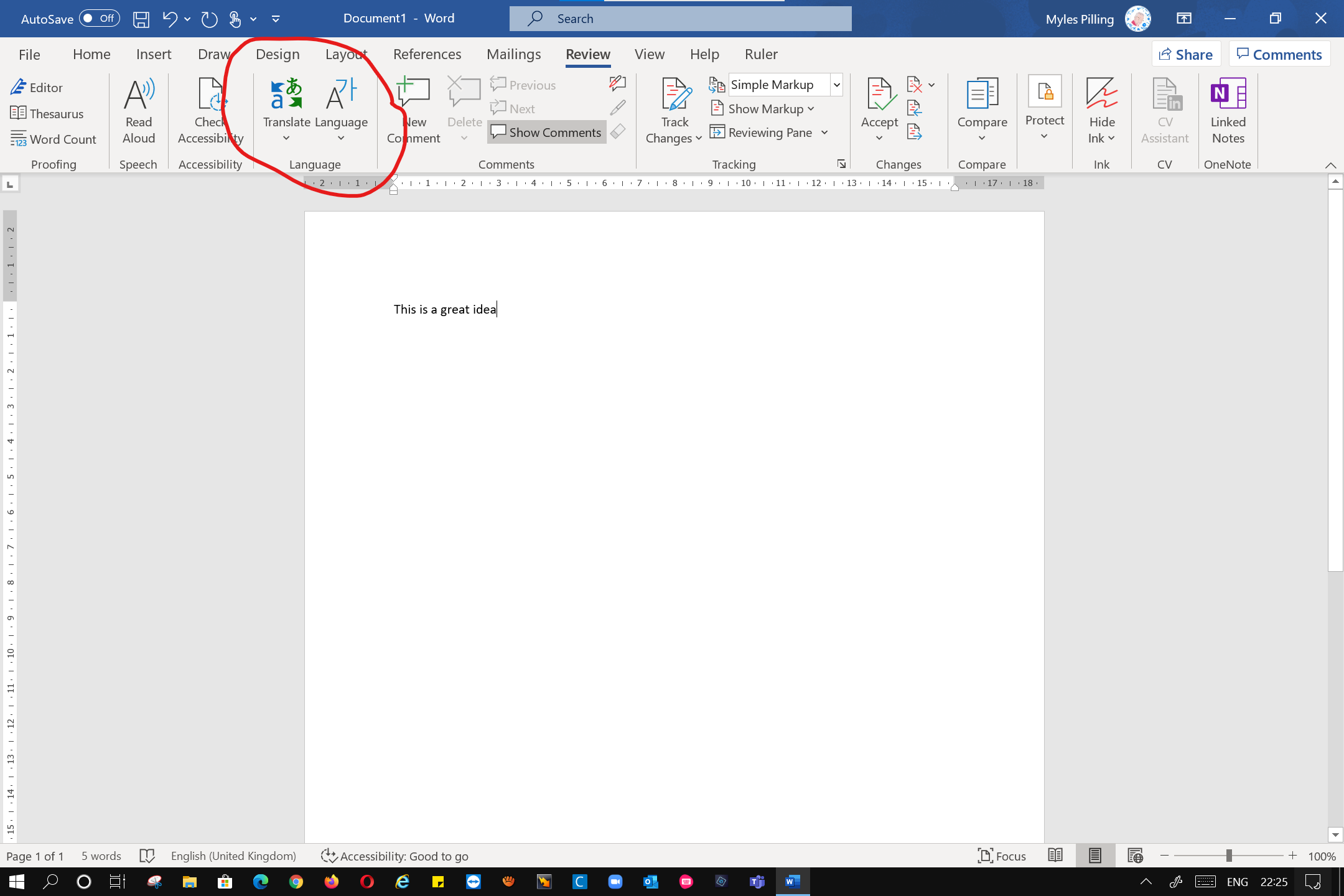
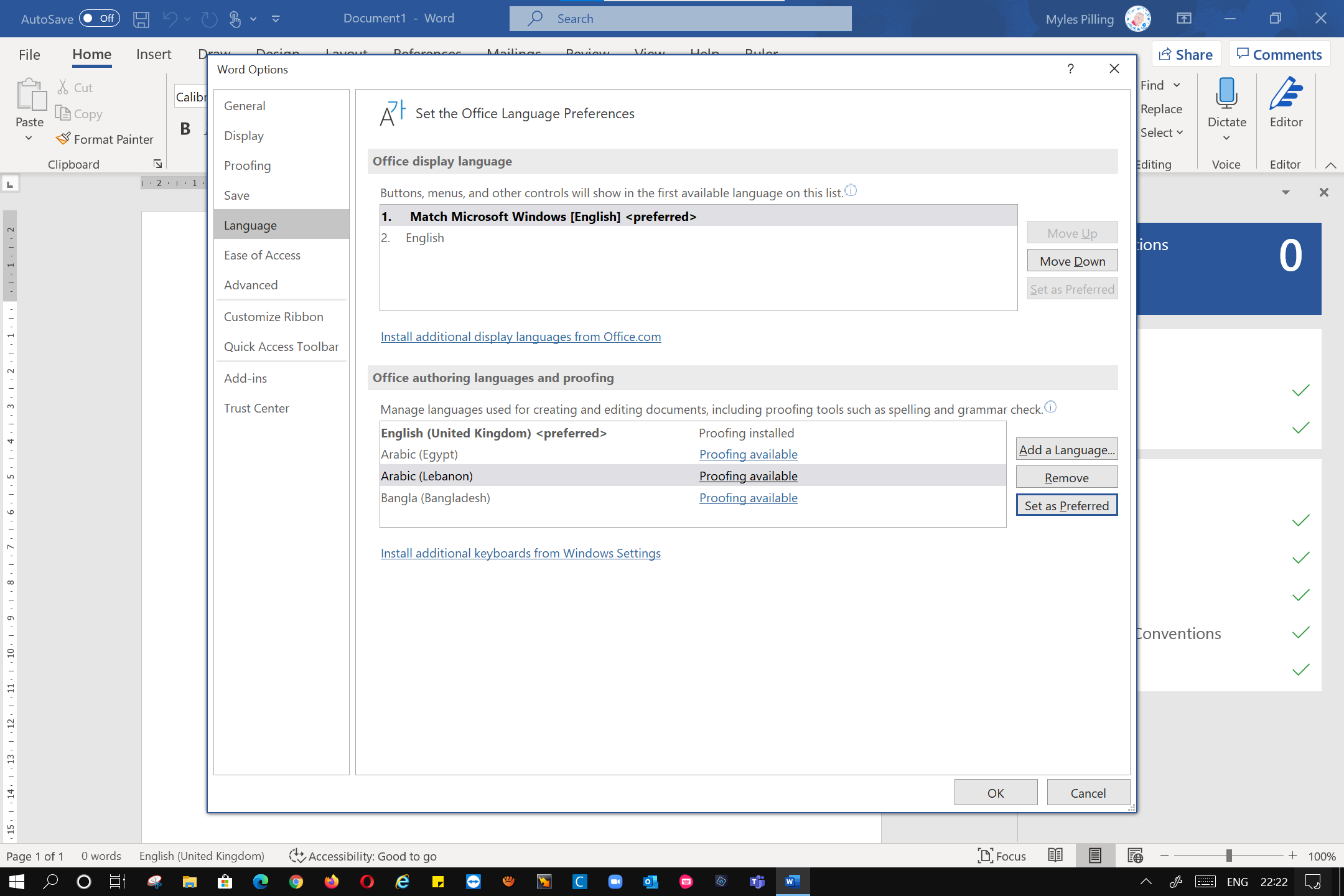
Screenshots of where to find the language tools
Tip 3
Do the job once and share it many times and in many ways!
What do you mean do the job once. I see people writing out by hand and then typing it in laboriously. If you uses software like Sticky Notes or Post-it Notes ( there is a delightful app for that) then you can save it as a Jpeg (picture), PDF ( a book) or something else. You might need a mobile or tablet to do this. But I use sticky notes to have my agenda handy for when I am delivering a talk or need to minute something or remind me to do something.
Having hyperlinks in your documents or on a website can make it easier for people to find what you are talking about.
Oh, and it saves time rather than doing a separate task like taking a photo or screenshot then putting it into a word document that you save as a PDF. In word you can do that and make your wonderful information accessible on any machine. That leads to Tip 4….
Tip 4
Use browser bookmarks to pass on information quickly to others.
It’s quicker to click on a link than try to remember the website. You can copy and paste and popin an email.
Sharing videos? Don’t use an email attachment. They are often failing as the file size is too great, No use Google Drive or Dropbox or OneDrive and store your videos, photographs there and post a link. Remember to make a shareable link that doesn’t require a login to access. Test the link first. It’s amazing how much time and frustration that tip saves!
Tip 5
Plan your social media – it’s not about your events, activities. It’s about engaging with others on topics of concern and getting your name( brand) known.
Most people, myself included just thought that social media was a way to get people to look at your website, your event you are putting on, etc.
No, the main thing is to push your name out there by doing all the above but also doing the following:-
- entering into conversations via twitter about what you think or your company thinks about topics of concern. This gets you known
- drip, drip little items of interest from your website on a regular basis
- answer tweets, and use hashtags #useyourhashtag so that you can follow the conversation others are also having and relate to them.
In other words – you get what you put in and an occasional tweet or Facebook post just isn’t going to make cut it!
There are more things but do follow me on LinkedIN where professionals are going to have those kind of conversations. Alternatively, if you want to know more about Assistive Technology going to my Facebook page.
Finally, if there is one thing you might have picked up from this short little blogpost is the power of hyperlinks and the hashtag #longlivetheashtag!
Assistive Technology and the Dyslexic Learner
I recently did a free webinar for the British Dyslexia Association about Assistive Technology which was well received I think. Here is what was said:-
We had 2006 registered and 602 attended – most attendees by now know that we will send the recording the next day so we have it downloaded loads of times since.
I found Mr Pilling’s webinar, and attached information, very useful and will try to research some of the apps suggested. What’s good for SEN is good for all!
Thank you very much again
You can watch the whole webinar here as well. It is 55mins long
Kano tablet and all-in-one
This looks interesting as a way to teach children about computing by building it themselves . Take a look at this . All for £299.00
 AccessAbility Solutions