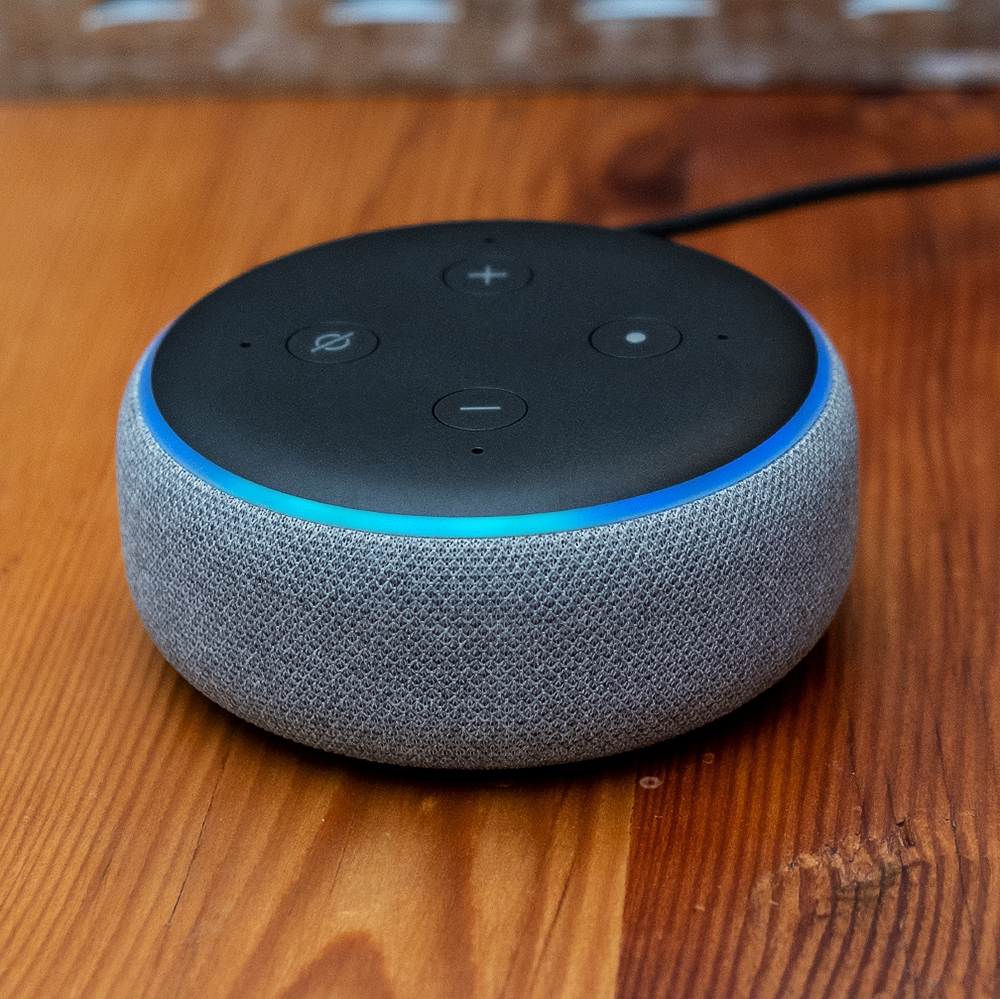
One of my clients wanted to upgrade from 2nd Generation to 3rd Generation device. It seemed to work at first and then we discovered a problem with Amazon music. She has the single device package at £3.99 which means you have to attach the subscription to a single Echo Dot. Obvioulsy we had it set to the previous device. I looked at the app first and then the online account – although I did find the Amazon Music settings on the account via amazon.co.uk I could not finda way to change the device.
Amazon Echo Dot (3rd Generation) louder and better sound quality
The Solution
The solution was to ring this number +353 (800) 4961 081 for Amazon Customer Services. They answered the phone straight away and a helpful guy called Josh helped solve the problem which needed several attempts before getting it right. It seems you can’t do this yourself – I tried to find a solution and failed_ so the answer is to ring them.
In Conclusion
The client and I discussed that this would not be problem for music unlimited users or prime users as the devices don’t need to be “attached” electronically this way. Only the single users would have difficulty.
This is a subscription-based screen reading and content-rich product for the blind. In this podcast, we consider it’s features and its access, including some of the difficulties on access using Dragon Dictate.
Get organised – lots of tools out there that can help you work more efficiently – more collaboratively.
Having trouble remembering that password? Go to your emails and search for the item by its title and find out what email address you used. Then search for your joining up email, Then you can either see the password or have a reset of it.
Google stores passwords ( if you want it too) and you can then search and access them ( with your google account password) so that you can see the password you set.
Alternatively keep a hidden file on passwords or use 1Password
Trello – is a project tool that helps you collaborate and inform on products.
1Password – is a subscription based password storing tool on iOS, Android, Windows,MAC. It will store your passwords and with biometrics keeps your passwords secure
Tip 2
Use the assistive technology that is under your nose! ( well, not literally your nose but near to hand)
Google has some great tools for making your computer more easier to use. Use your bookmarks and bookmark bar on google to keep the most frequent sites available to you. Managing the information flow is a key 21st Century skill so having folders that you organise and keep information is essential to a tidy desktop and tidy mind.
Google Docs has voice typing so you don’t even have to type you can use the voice
Oh, and what’s that mike icon in the search window on google for? That’s right voice searching. A boom to dyslexics.
Microsoft Word on Microsoft 365 and Office 2016 and 2019 have the immersive reader on the View Tab and the dictate button on the Home Tab. The later lets you input with your voice, Did you know using your voice is 50% faster than typing? And the former has text to speech that reads it back to you.
Do the job once and share it many times and in many ways!
What do you mean do the job once. I see people writing out by hand and then typing it in laboriously. If you uses software like Sticky Notes or Post-it Notes ( there is a delightful app for that) then you can save it as a Jpeg (picture), PDF ( a book) or something else. You might need a mobile or tablet to do this. But I use sticky notes to have my agenda handy for when I am delivering a talk or need to minute something or remind me to do something.
Having hyperlinks in your documents or on a website can make it easier for people to find what you are talking about.
Oh, and it saves time rather than doing a separate task like taking a photo or screenshot then putting it into a word document that you save as a PDF. In word you can do that and make your wonderful information accessible on any machine. That leads to Tip 4….
Tip 4
Use browser bookmarks to pass on information quickly to others.
It’s quicker to click on a link than try to remember the website. You can copy and paste and popin an email.
Sharing videos? Don’t use an email attachment. They are often failing as the file size is too great, No use Google Drive or Dropbox or OneDrive and store your videos, photographs there and post a link. Remember to make a shareable link that doesn’t require a login to access. Test the link first. It’s amazing how much time and frustration that tip saves!
Tip 5
Plan your social media – it’s not about your events, activities. It’s about engaging with others on topics of concern and getting your name( brand) known.
Most people, myself included just thought that social media was a way to get people to look at your website, your event you are putting on, etc.
No, the main thing is to push your name out there by doing all the above but also doing the following:-
entering into conversations via twitter about what you think or your company thinks about topics of concern. This gets you known
drip, drip little items of interest from your website on a regular basis
answer tweets, and use hashtags #useyourhashtag so that you can follow the conversation others are also having and relate to them.
In other words – you get what you put in and an occasional tweet or Facebook post just isn’t going to make cut it!
There are more things but do follow me on LinkedIN where professionals are going to have those kind of conversations. Alternatively, if you want to know more about Assistive Technology going to my Facebook page.
Finally, if there is one thing you might have picked up from this short little blogpost is the power of hyperlinks and the hashtag #longlivetheashtag!
I recently did a free webinar for the British Dyslexia Association about Assistive Technology which was well received I think. Here is what was said:-
We had 2006 registered and 602 attended – most attendees by now know that we will send the recording the next day so we have it downloaded loads of times since.
I found Mr Pilling’s webinar, and attached information, very useful and will try to research some of the apps suggested. What’s good for SEN is good for all! Thank you very much again
You can watch the whole webinar here as well. It is 55mins long
This is supporting information for the recent webinar on “Assistive Technology and The Dyslexic learner” done with the British Dyslexia Association about helping parents use Assistive Technology in the home and at school. 2,000 people signed up for the webinar and we had over 1,000 people on the call – Amazing! I featured this event on my weekly Podcast listen to it here:-
Episode 31 – Parents in Lockdown
Below is a resource bank to find useful apps and websites that can help you during this time of lockdown. I have also included a teaching plan for those home schooling who would like some fresh ideas to use. Just keep scrolling!
Here is a list of apps you might find helpful with the links to finding them and how much they cost:-
Apps for Dyslexia
Clicker – free access to parents at home during Coronavirus
Follow photos and videos about journeys and choices
Maths
Aerobics was a hit. Look at part and whole. Found part and whole in Oak Academy content
Science (& Music)
Guess the material game https://www.bbc.co.uk/bitesize/articles/z6kdwty Looking at materials and the natural world under a visualiser. Songtime : “Let it Go” mime to the song as well as sing it. “ I want to be like you.” (Jungle Book) Have some instruments to demonstrate sounds – name game.
English – story writing
Kims Game – 10 objects to see and guess which one is taken away – use the visualiser Storybird – writing a story about a dinosaur who was sad… Why was he sad? What can happen to cheer him up? Artful Storytelling Make up a song about him . Sing “ If your happy and you know it”
Only Leo & Maia so concentrated on drawing and pictionary game to start with Located where they are . Looking from different perspective – Google Earth – and seeing where I live and where Colin & Ann live in Edinburgh
Arts & Craft
Make something together using simple materials. Leading each step of the way Find a task using paper or card. Glue and scissors. https://www.youtube.com/watch?v=ob50DirreGY Strips of coloured paperStrawsToilet roll paperGlue – PVA or Pritt or UHUScissors
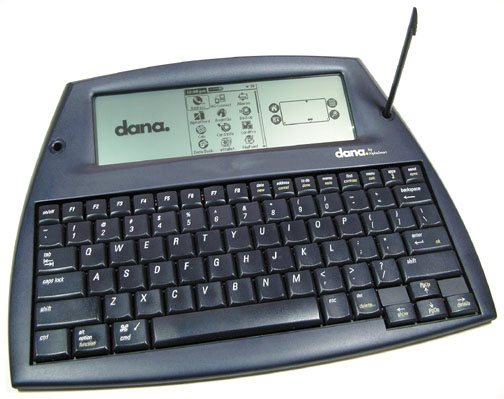
Alphasmart DANA – an portable writing tool from the 1990s
Typing and writing on an Alphasmart Dana :-
” So I discovered this in my storage that I had an old Dana which I used in the old days for meetings. The battery has gone. So if I were to resurrect it it would not work. So what use would it be now. This device must be 16 years old +. I love the keyboard so easy to type with. Well spaced and resposive keys. I do make fewer mistakes..
Using a USB cable they are good for support assistants and for colloabrative work. The support aassistants can make notes for the students or communicate to a deaf student discretely as it just types. The pupil can use it to write with another student in real-time . They can do joint projects with it and write directly to the screen,
Finally, I can try using the send button to send to a PC/Chromebook/ Android device. I think that will work. If it transfers into this article it will work. It did!”
Isolation is a big problem in our present time and never has there been a more important time to be connected than now . These two charities provide free technology in the UK to those who need it.
Ghotit is aimed at the student who requires support, maybe as a dyslexic and in need of DSA. Ghotit provides a word processor and a context sensitive dictionary to show the meaning of words. It also has grammar tools that help give alternative words, better words or better grammar to a student’s sentence. It works with applications such as Google Docs and Microsoft Word. Take a look at the explanatory video at :-
 AccessAbility Solutions