I am going to this excellent conference which is a showcase for Assistive Technology in the UK.
Author: AccessAbility Smyles
Specialist ICT SEND Consultant,
Committed Christian,
Loves photography and computing
Plays piano and guitar - both badly!
Orcam MyReader
I have been working with a client who has severe visual impairment and just this weekend we bought an Orcam My Reader device. She is an author and finds large magnification of text very difficult to practical use as she reads ahead for meaning and the slowness of the magnification way makes that difficult. Using the Orcam to review her research for addition to her book having a tool like Orcam that can read the text back to her both from printed and screen materials on a computer/mobile device is just amazing for her. If you want to know more details check out this video clip. It is for the Orcam MyEye – both MyReader and MyEye have similar functions but the MyEye does facial and product recognition whereas the MyReader is just for reading and it’s slightly cheaper. Both devices cost between £2,000 -£3,000 depending on which device and what accessories are required:-
Two-Factor Authentication
I wanted to help my daughter with special needs remotely but the two- factor authentication didn’t actually allow me to do this without her device being there. This makes helping her less helpful. I have to sort her emails. But she has to be with me to do this. And why is there is no option to switch it off???
When Apple changes your world ( but not necessarily for the better)
In the worlds of Victor Meldrew” I don’t believe it!” A client I am working with wanted a simple thing – something that has been working the way she wanted it but has changed we think on the last apple update. She wanted to be able to see all her emails with dates eg 09/01/19 format. She is partially sighted and would find it useful for her to have that option.
So we rang Apple support. The response when I told my query was a typically optimistic one from the apple support desk “yes we can do that” and ” we have the answer for you.”
Well an hour later the problem had not been resolved to my client’s satisfaction. She still had days of the week appearing in her email summary and we were no nearer forward. Our Apple support referred to a higher level – a super support operative – who also could not get the situation resolved. Why was this the case?
The reason being that Apple had made a global change that they thought people wanted. Why had they done this? There doesn’t seem a reason other than they thought people would prefer this. Check it out yourself your emails will display the time of the email for the current day and days of the week or yesterday for previous days until the previous week when dates apply. There is no way of changing this and my client is frustrated. But not only that – during the process of trying to understand what had happened we had to reset her device.
Resetting your ipad when Accessibility Options are in operation
Resetting was not a good idea for my client which I questioned at the time but being a good obedient customer I obliged. Needless to say all her custom settings to make the device accessible for her had gone.
My advice to any user with Accessibilty Options set is not to do this unless you have noted all the changes you have made.
In our case it was many we:-
- changed to Larger Text in Accessibility
- we had speaking selected text on
- we had zoom switched off
- we had the magnifyer switched on
- we had zoom in display & brightness switched on ( this was a strange one as I think this options should be in accessibility) why did we need this? Because we needed the icons bigger and this is the only way this is done
- we had the background screen set to black.
- Pages needed the presenter mode switched on
- …..and so it goes on
I told this to the super apple operative and made her aware I would be working for the next hour on restoring these settings. I suggested that all apple operators should be trained in-depth on the effect of reset on Accessibility Options. This reset is not erasing data but it does erase the Accessibility Options. There needs to be a setting in the reset options made that states ” Reset your device but keeping your data and Accessibility Options you have made ” option.
Apple boasts it has Accessibility at the core of all its business which is true to an extent but this particular incident shows that small changes can make a big impact on a person with disability which is not always in the interest or preference of the disabled person – in this case for visual impairment. Surely, there should always be options or choices built into any operating system to customize it for people with disabilities rather than making a blanket change because the company thinks the user wants it?
Anyway Apple have raised this on their community and a link will be shared with me when that is done. I think I will put my link to this article on it too!
Here to help
It’s the start of a new year and maybe a time for you to think whether you need any help with a ICT or Assistive Technology.
AccessAbility Solutions has been in existence now for 6 years and loves to help people find a solution to their disability or ICT related need. We use the latest and most appropriate technologies to find you a solution,
Primarily working in the education sector we also work in social care settings and individual homes. We do NOT do wheelchair assessments! We are an IT company with a training side.
Why not give us a call or email us via the website to discuss your ICT and AT problem or need?
Job Opportunity for a SENCO or Deputy Head
Looking for a change and you want to do something great beyond your school. Are you or have you been a SENCO? Are you or have you been a deputy head ? Then this full-time role may be for you:–
Job Title: Head of Education Services
Job Summary
Scanning Pens Ltd is looking for an experienced, professional and dynamic individual to join our expanding team. As Head of Education Services, you will be responsible for sharing and developing examples of good practice of our products to share with education professionals in a variety of settings including the delivery of presentations, seminars, school visits and exhibitions. This role is based from our Telford, Shropshire and Westbury, Wiltshire Offices working with different teams within Scanning Pens including our Marketing and Sales teams.
Here’s a link to the job: https://www.indeed.co.uk/jobs?
Zotero – tool for collecting source citations
Save references to Zotero from your web browser
Zotero is a free, easy-to-use tool to help you collect, organize, cite, and share research.
Very useful for University students and those doing research
Collect with a click.
Zotero is the only software that automatically senses research on the web. Need an article from JSTOR or a preprint from arXiv.org? A news story from the New York Times or a book from a library? Zotero has you covered, everywhere
Organize your way.
Zotero helps you organize your research any way you want. You can sort items into collections and tag them with keywords. Or create saved searches that automatically fill with relevant materials as you work.
Cite in style.
Zotero instantly creates references and bibliographies for any text editor, and directly inside Word, LibreOffice, and Google Docs. With support for over 9,000 citation styles, you can format your work to match any style guide or publication.
Becoming Disability Confident
Our friends at Iansyst are putting on an interesting free event about AT in the Workplace in Cambridge on the 14th March. It will include seminars , refreshments, lunch and a raffle! More details below:-
https://mailchi.mp/dyslexic/join-us-on-the-14th-of-march-1706781?e=3dcba6bea2
Rocketbook
 There are a number of different types of electronic notebooks on the market . Rocketbook (£34.99) is re-usable notebook ( up to 5 times) on a single notebook.
It’s application? In terms of special needs I think that it’s a way of improving handwriting. Pupils will try harder I think of it is going to be saved for posterity.
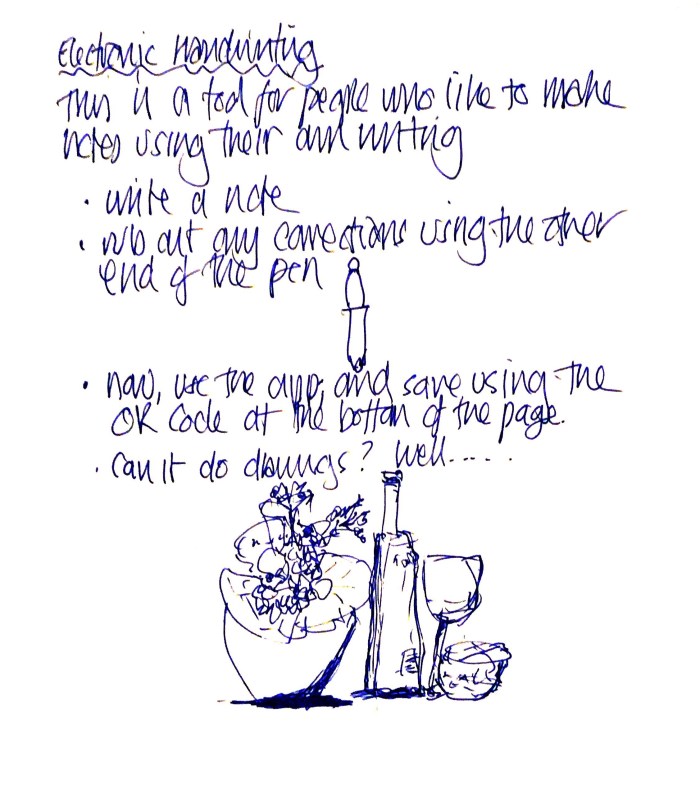
Happy Handwriting!
…and drawing!
Google Assistant – an Assistive Technology
Google Assistant (£free) on Android and iOS
But it’s weird that it doesn’t send emails on Google Home Mini! Google Assistant can write and send emails just like Siri but for Android and iOS devices. Using my voice only I was able to say Ok Google and Send an email to <name> and Google Assistant prompts the replies making it a doodle to send an email to someone in your Google Contacts list.
This makes it an Assistive Technology tool that could in particular help blind people. If like Siri OK Google fires up even when the app isn’t running this would be a great alternative. This would appear to be an Android thing, but I am looking into it. Google Assistant works on Android 5 and above.

