Grab some free CPD from an outfit that specialises on “teachers teaching teachers” therefore it’s practical and transferable skills . First 100 applying will get this training :-
Author: AccessAbility Smyles
Specialist ICT SEND Consultant,
Committed Christian,
Loves photography and computing
Plays piano and guitar - both badly!
Have you visited our other website?
Yes, there is another website? Why two? Good question ! The main reason originally was to swop over to this site completely. That has for various reasons the main one being there has been such a bank of information built up and aas123.com has been the main site for me.
Now we have introduced a text to speech reader on the other site which might make it a more accessible site for thos with additional needs, especially sight and dyslexic issues. The content is more selected content of less changing and serendipity information. This is usually termed more static information.
So what is the website?
I will put links elsewhere on this website as well in due time!
C-Pen Connect
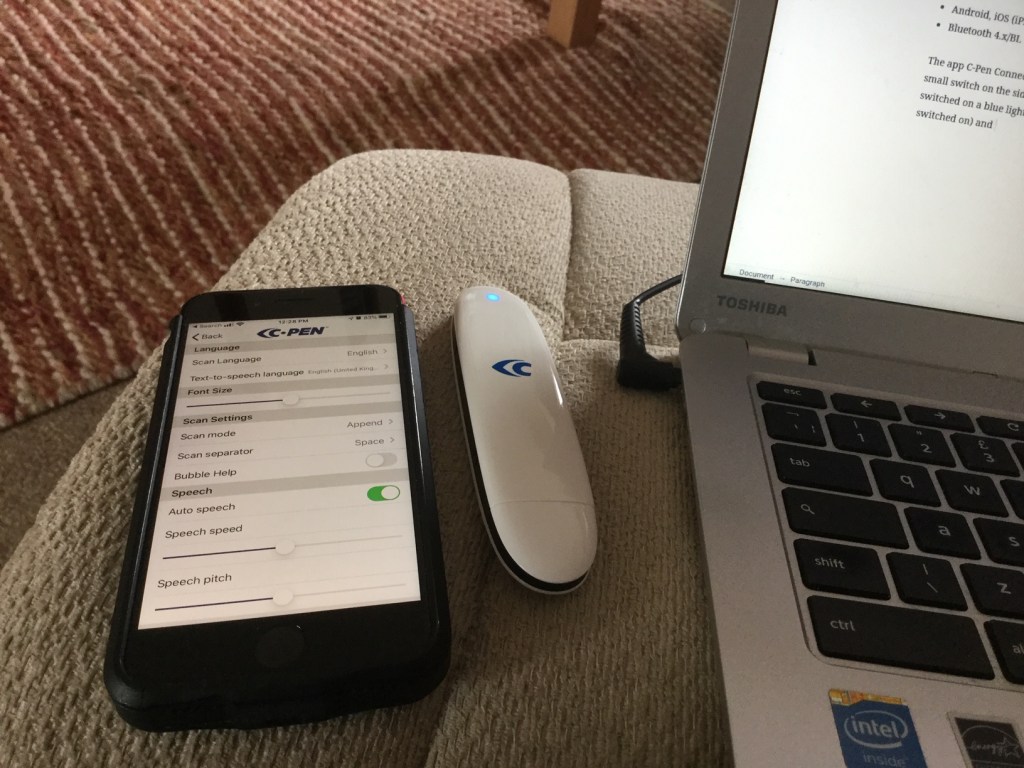
C-Pen Connect from Scanning Pens is a new and exciting tool to add to their already useful product range. What is different about this pen is it’s bluetooth connection which makes it a tool to transfer with into another medium.
To begin with , here are the specifications:-
Specifications
- Scan languages: Chinese, Danish, Dutch, English French, German, Italian, Norwegian, Russian, Spanish, Swedish. Plus with Google Translate their are 38 text to speech languages to access.
- Scan speed up to 12 cm/s
- Scans font size 6,5-24 points
- Rechargeable lithium battery: 600mAh / Full charging cycle 2,5h
- Size 124 x 29 x 15 mm
- Weight: 42g
System Requirements
- Android, iOS (iPhone/iPad), Windows and Mac
- Bluetooth 4.x/BL
The C-Pen Connect app is free to install and instantly looks for the C-Pen to use. You can download from the C-Pen website https://cpen.com/connect/android/ & https://play.google.com/store/apps/details?id=com.cpen.bt10&hl=en_GB for Android and https://apps.apple.com/us/app/c-pen-connect-bt10/id1438709319 for iOS Apple. The pen has a small switch on the side which may be a challenged for pupils with fine motor issues. If that is an issue for you or your pupils then consider purchasing the Glu dots – £2.12 Amazon https://www.amazon.co.uk/Bostik-Extra-Strength-Sticki-Dots/dp/B01H2T5ENE/ref=sr_1_2?dchild=1&keywords=raised+dots+for+blind+people&qid=1588674454&sr=8-2). Once switched on a blue light flashes until their is a bluetooth connection ( make sure that is switched on) and the flashing turns to steady blue. You are connected!

In the settings on the app you decide on the language you want to use . So it would be great for students wanting to translate from a different language, there are 12 input languages available so lots of choice their, includng Chinese and Norwegian. You can also set the text to speech to speak whatever text to 38 different lanaguages making an excellent tool when on holiday or reading text in a person’s home language for MFL students.
You can adjust the font size for clarity of the user on the app. Then there are settings for scanning both append and replace as well as a scan separator. Append literally adds each successive scan to the file whereas Replace just sends the current scan deleting previous ones. The use maybe for creating a document you would use Append whereas you just need a quick phrase scanned to help understanding then the Replace option works best. Next there is bubble help and perhaps one of the best features a C-Pen Keyboard allowing the pen to work in a range of different applications. So it’s not limited to the one app. As soon as the scan is done the pen reads back through the app. It’s clear and english so you have a direct translation of text . Bubble help gives more advice and support to show it’s tools such as translation to other languages.
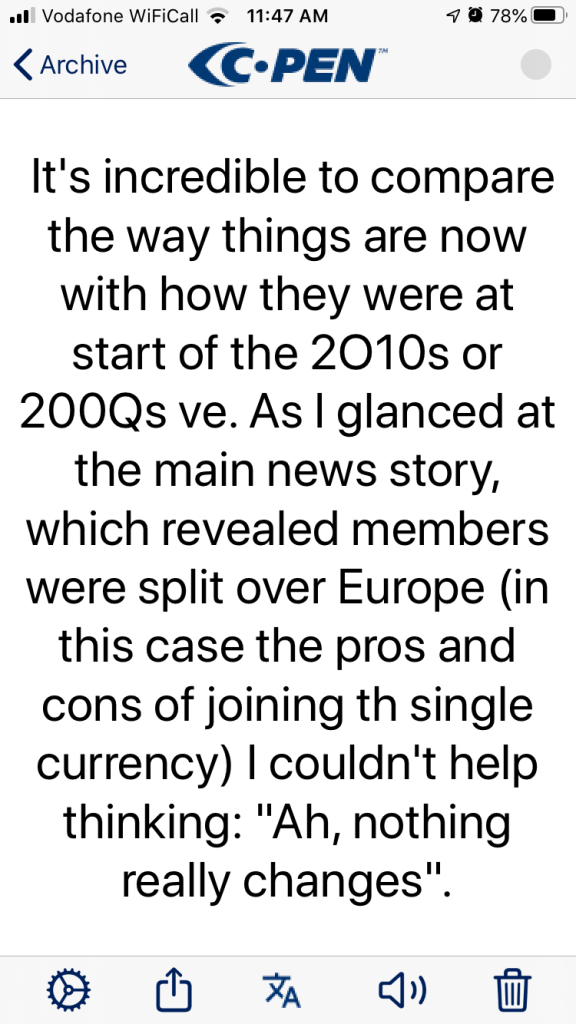
With any new tool I use I look for what it outputs to so my next test was to see what I can send my text out to. My iPhone 8 sent to all my apps I use for recording successfully. So if you are a notes user this works really well for that. Students may want to share information between each other so I tested Airdrop and found that worked in notes straightway. A few missing letter but nothing that can’t be edited out. Of course this would not be a welcome feature in an exam context but I am sure ScanningPens have an answer to that.
In order to use the C-Pen Connects Keyboard I added the keyboard from the General Settings as any other keyboard. I was able to use the keyboard to send to Google Docs which for a student would be useful in translating research directly into an essay. I like the way you can hear the text instantly so it feels very immediate and intuitive. For technology to be useful I think it needs that can of instant appeal. The buttons on the app are large and simple to operate. Just what you need. Speech, undo, redo, backspace for removing mistakes ( which I think it will make – OCR is still a developing area for assistive technology. I found it very easy to get this right – even quicker and smarter than other scanning pens.
This pen opens up broader possibilities for the use of scanning and how it might be used in teaching and learning such as a translator, code-breaker and collaborative writing. This is mainstream technology that can be used for special needs. How can it be stretched into a scanning tool to code and decode text on different media and surfaces? Here are some ideas to get you thinking down those lines. The uses are endless!
Teaching ideas
- Code breakers – Get students to be spys and send to another language – and see if the other pupils can translate – so their will be senders and receivers – part of a project on communication methods.
- Treasure Trail – setup text in Chinese around the classroom ( rather like QRCodes) but on desks or surfaces rather than walls. Have a set of instructions that the students have to follow to get to the end of the trail. Have a prize at the end for all the students.
- Make up adventure story (collaborative creative writing)- write out a sequence of events with alternative endings on a single A4 piece of paper to give to each students. You ask them to build up their own stories from the text you have provided them. They must make a story that a) makes sense and b) as choices that make sense to the story
- Meet the stranger – have a set of statements writing in a foreign language. The statements could be about aspects of the country they are from. That could be of geographical interest or historical. Also, there is a problem to solve. The group using their pens find out about this stranger and why he or she is in a dilemma? There will be discussion on how they could help the stranger. ( ideal for refugee stories or bringing in current social topics)
- Find out about- ( reading & researching) – set a task for finding out about a historical time period of place in history – eg Victorians, Florence Nightingale, Henry VII, etc. Using books they find they must find 10 facts about the subject using their pens and collating them in one file.
- How accurate is scanning? (science) – how good and accurate is the pen? Is there a better way to get more accurate using the pens? Is the speech output good at pronuounciation or not? Set an experiment with a standard text and get the pupils to scan it in via their pens to the app. Did everyone get the same result? If it was different what were the differences and why do you think this happened?
- Find the missing phrase – give out coded instructions . Go to such and such a book page ?? and line ?? What does it say. Now produce a page of text from the book which has some phrases missing – use Clicker 8 and cloze procedure to remove pharses and words and print it out. The pupils have to find the missing phrases from the orginal text and book.
- Message from the International Space Station – set the scene – a chinese astronaut is stuck on the international space station . He or she is sending messages to earth. Here are the transmissions ( which contain different Maths tasks to solve to do with geometry and angles of descent as well as maths problems to do with dwindling supplies on the space station) Of course all this is done in Chinese
Older pupils
- French WW1 (History) – stuck in a trench a british soldier has come across a diary from a french soldier. It needs translating – does it contain any useful information or not?
- German WW1(History) – having taken over a german placement you discovered german mesaages on a pinboard. Can you translate them with the C-Pen for us please?
- Message bombardment (Technology) – 1:1 exchanges between pupils using only the c-pen and not their voices or handwriting. How long can you keep the dialogue up? Use email, airdrop or shared screens on one device to have this text conversation.
- Project Essay (Humanities/RE/PSE) – using the library research a given topic and present the findings to the class on a given subject from current affairs, to political situations, to issues that affect young people. Use the pen to collect and collate data into a single document. Evaluate whether this was a useful method of doing research
- Fragmentation (History)– a medieval script as appeared and is missing vital words and phrases can you research some source materials to re-build the script. eg Magna Carta,
- Foreigner (MFL)- an English man in Italy – you are in need of understanding a set of instructions to guide you around the city . Use the pen to translate signs you encounter on your virtual tour.
- Play on Speech (Drama) – use the scanning pen to do a play script. This could be a play about a robot and a person. Write the script then perform it live before the class.
- Testing C-Pen ( Science ) – can the C-Pen work from other media? Handwriting, Screen, Paper, Card , Surfaces, Posters, etc. Conduct a controlled test around the school environment and see what surfaces and forms of text the pen can cope with and note the results down by collecting evidence collected by the pen.
- Data operator (Maths) – enter a set of numbers into a table to calculate a sum, an average or count. This could be allied with a business studies course or from a mathematics problem to a science experiment
For more information about C-Connect go to:-
https://www.scanningpens.co.uk/Reading-Aids-Products-SPUK/C-Pen-Connect.html Price £100
FB “connectpen” or Insta “connectpen_” – theres an underscore at the end!). https://www.cpenconnect.com/
Glean
Audio notetaking is a good way for dyslexci learners to recall a lesson and to go back through what they have learnt. It takes a great deal of self-discipline and awareness to do this. Some packages can be process heavy , but not Glean! Glean is based on simplicity of function and purpose.
The opening screen contains very few icons so it doesn’t visually put you off. The effort of recording is simplified with a one click solution once a title( which is saved automatically) is clicked . Then using pre-set headings you can add importance to what is said. You can also add your own notes. In essence that is it. But you can add slides later and also you can add note sin realtime though I found this difficult when trying to listen to the talk/seminar or lecture.
Who is this for? University or secondary aged pupils needing to take notes that can re-heard later on. Also, for researchers to collect evidence and collate findings to make reserach an easier task. I like thje way at the end it collates all your notes together into one file. Very useful. Watch this short video to see how this all works:-
Episode 24 – AT & Disability Students’ Allowance
https://www.podbean.com/media/share/pb-ehjy2-db32d6
What is DSA? What AT supports students when they go to university or higher education?
Episode 24 – AT & Disability Students’ Allowances
www.podbean.com/ei/pb-ehjy2-db32d6
What are Disability Students’ Allowances? Who are they for and what AT supports them. This week we introduce some of those tools. In future weeks’ episodes will we will consider other tools that are DSA approved .
Voice control to make a call to Zoom
If you have lost hand function and you want to join a zoom meeting you are basically stumped as you have to manually input the meeting ID , participant number, and password .
Now, I have discovered a way to do this by voice using Siri, iPhone and a zoom meeting. It boils down to a couple of commas, the meeting ID # and more commas to give a pause and then more ,,, to end with a # . If you are skeptic or need to see how this works here’s a video to prove it.
Imagine you are blind as well as loss of hand function this is truly debilitating and require speech only the method, the only press made was for you to hear the process in real-time.
Chromebook Accessibility Features
This webpage gives you an article explaining all the accessibilty features in Chromebooks . There are links to videos that cane explain how to setup the features and turn them on
Go to:-
And to watch a video now, see this one on highlights around the cursor:-
Google Meet: EDU in 90
This is helpful set of videos updating you on Google products. Go to:-
Access to Work
Did you know as an employer you can get help for your employees from the Access to Work scheme?
Here is the link to further information and the application process
https://www.gov.uk/access-to-work
AccessAbility Solutions can advise you on the kinds of solutions that can help you from seating to alternative input methods to your computer. Give us a call or book a 15 min free consultation to discuss your requirements.
It’s not just about life-long disabled people it is also about those in your workforce who suffer illness and life changing circumstances and need help.
AAS is sub-contracted to conduct Assistive Technology Training for Neurobox.
 AccessAbility Solutions