JAWS to become subscription based

News to JAWs users. From mky one of my blind cleints. He reports that JAWS is changing to a subscription model. This will take place after the 31st October this year. It will be a three figure sum for those users who want a professional version of JAWS. So if you were thinking fo changing JAWS or buying it best to do in the next few weeks!

JAWS has transitioned to a subscription-based model, alongside its sister products ZoomText and Fusion, offering flexible 1-, 2-, or 3-year terms that include software updates, security patches, and technical support. This new approach replaces the older model of purchasing one-time perpetual licenses and separate Software Maintenance Agreements (SMAs), making it simpler and often more cost-effective for users to stay up-to-date with the latest features and support. Professional Edition subscriptions also incorporate remote desktop access for Citrix/RDS environments at no extra cost.

What the change means for users:

  • Continuous Updates:Subscriptions provide all future software updates, security patches, and new features for the duration of the term, ensuring users are always on the latest version. 
  • Included Support:Full technical support is bundled into the subscription, eliminating the need for separate support agreements. 
  • Predictable Costs:The subscription model offers a lower upfront cost than traditional perpetual licenses and provides predictable, recurring expenses. 
  • No More SMAs:The mandatory Software Maintenance Agreements (SMAs) for perpetual licenses are replaced by the subscription model, which has these benefits built-in. 
  • Network Access (Professional Edition):Professional license subscribers gain integrated access to remote desktop environments like Citrix and RDS without additional costs. 

Why the change was made:

  • Simplified Software Management:The subscription model simplifies the process of keeping assistive technology current and effective. 
  • Enhanced User Experience:It ensures users receive continuous improvements, including new AI tools, OCR enhancements, and compatibility with the latest operating systems like Windows 11 and Microsoft Office. 
  • Addresses Security Risks:Staying on the latest version, guaranteed by subscriptions, is vital for security and continued functionality. 

For existing users:

It is important to ensure your software is on the latest version and to transition from an expired SMA to a subscription to maintain access to vital updates and support. 
 

Existing users with perpetual licenses are encouraged to explore the subscription model to benefit from continuous updates and support. 

This article has been generated by AI

Somerset Parent Carers Conference

There is a wealth of AT stuff to get to grips with. Some free! Some AT is subscription based. Be careful what you agree to!

A list of current hardware – some old, some new ​. Some are really pricey.

Scanmarker Pen https://editmicro.co.za/product/scanmarker-pro/

Scanning Pens – https://www.scanningpens.com

Lexilens- https://www.lexilens.com

Olympus DS9000- https://dictation.omsystem.com/en/product/ds-9000/

Orcam Read – https://www.orcam.com/en-gb/orcam-read

New Stuff – not promoting but giving you information and a chance to see these products 

Ivvi – https://ivvi.app – £30 monthly, £300 per year, £495 for 3 years 

Lexilens – 490 euros / £409.22 https://lexilens.com/product/lexilens/ ​ – smart glasses for dyslexics that see letters moving.

Goblin Tools – £free – https://goblin.tools/  

Microsoft CoPilot – paid for in your Microsoft 365 subscription, free on The Edge brower – https://copilot.cloud.microsoft/?fromcode=cmc&redirectid=08374CBFBCD64F729B19AE31285BF999&auth=2  

TalkType – £20 monthly subscription(1,000 minutes per month) or £50 monhlty billed annually (3,000minute per month) https://talk-type.com/  

Ayoa – £free for up to 10 mind maps , Ayoa Ultimate £10 a month billed annually £120 – https://www.ayoa.com/  

Google Gemini – £free ai tool – https://gemini.google.com/  

More apps that have been around a while but still useful  

Clicker – https://cricksoft.com/clicker/ talk to Crick before any purchase to gain best rates 

DocsPlus – https://cricksoft.com/docsplus/ mainly secondary , grown up Clicker with word banks and mindmaps again talk to Crick before purchasing  

Dictate – built into Word, PowerPoint, Outlook part of your Microsoft 365 subsription 

Immersive Reader – built into Word, PowerPoint, Outlook part of your Microsoft 365 subsription 

Microsoft OneNote – part of your Microsoft 365 subscription 

Typing Suggestions – built into Windows 10/11  

Google Docs – on your Google Account – free to access 

Voice Typing – on the tools menu in Google Docs 

Mindview – £15 a month billed annually £180 – https://www.matchware.com/mind-mapping-software  

My Study Bar – £free – useful exam access software as all the tools run without internet access  

Free apps  

ClaroSpeak  –  https://apps.apple.com/us/app/clarospeak-literacy-support/id977258467  

Provides word prediction, text to speech, capture text, dyslexia friendly check 

Postit!  – https://apps.apple.com/gb/app/post-it/id920127738  

Use sticky notes? Now its electronic and can be used to make mindmaps  

Popplet Lite – https://apps.apple.com/gb/app/popplet-lite/id364738549  

Simple and effective mindmap that can export to PDF and JPEG 

Correct Spelling  Checker – https://apps.apple.com/gb/app/correct-spelling-checker/id1481028375  – Provides a way to find and check spellings  

Class Timetable – https://apps.apple.com/gb/app/class-timetable/id425121147  – organisational tool for pupils to log their homework and lessons on a two-week timetable 

Notability – https://apps.apple.com/us/app/notability-smarter-ai-notes/id360593530  note taking tool that uses colour to designate to subject areas. Organises your notes into  subjects. 

Paid for apps  

ClaroScanPen – £9.99 – https://apps.apple.com/gb/app/claro-scanpen/id994933713  

Text to speech tool on printed materials. Not handwriting  

Easy Dyslexia Aid – £2.99 – https://apps.apple.com/gb/app/easy-dyslexia-aid/id1088194043  – input your word via your voice and see how it’s correctly spelt. Also uses different languages  

Organisation  

Microsoft Todo – part of Microsoft 365 subscription  

Mindview – £15 a month billed annually £180 – https://www.matchware.com/mind-mapping-software  

Global Tasks – demo avaialable – https://global-tasks.texthelp.com/Welcome DSA solution https://www.texthelp.com/en-gb/solutions/dsa/global-tasks/  

Trello – £free – paid products as well – https://trello.com/  

Alexa – £free – dates and calendars on the Alexa device – can be used on the phone 

Mind42 – free mindmapping software – good for collaboration over the internet as well – https://mind42.com/  

Helpful Resources  

http://aas123.com  

https://www.nasen.org.uk/atminiguide

https://bataonline.org/impact

https://bataonline.org/initiatives

https://discussinai.blog

There are some useful links here to accessibility tools built into Windows, Apple and Android. I call them ” Quick Wins”

Windows OS quick winsDownload

Aople iOS quick winsDownload

Google OS quick winsDownload

WDA SENCO & teachers AT training morning

This is the place where you can access the information I shared at this day. All the links are on the presentation which will be sent out to participants but also duplicated here for ease of access.

New Stuff – not promoting but giving you information and a chance to see these products 

Ivvi – https://ivvi.app – £30 monthly, £300 per year, £495 for 3 years 

Lexilens – 490 euros / £409.22 https://lexilens.com/product/lexilens/ ​ – smart glasses for dyslexics that see letters moving.

Goblin Tools – £free – https://goblin.tools/  

Microsoft CoPilot – paid for in your Microsoft 365 subscription, free on The Edge brower – https://copilot.cloud.microsoft/?fromcode=cmc&redirectid=08374CBFBCD64F729B19AE31285BF999&auth=2  

TalkType – £20 monthly subscription(1,000 minutes per month) or £50 monhlty billed annually (3,000minute per month) https://talk-type.com/  

Ayoa – £free for up to 10 mind maps , Ayoa Ultimate £10 a month billed annually £120 – https://www.ayoa.com/  

Google Gemini – £free ai tool – https://gemini.google.com/  

More apps that have been around a while but still useful  

Clicker – https://cricksoft.com/clicker/ talk to Crick before any purchase to gain best rates 

DocsPlus – https://cricksoft.com/docsplus/ mainly secondary , grown up Clicker with word banks and mindmaps again talk to Crick before purchasing  

Dictate – built into Word, PowerPoint, Outlook part of your Microsoft 365 subsription 

Immersive Reader – built into Word, PowerPoint, Outlook part of your Microsoft 365 subsription 

Microsoft OneNote – part of your Microsoft 365 subscription 

Typing Suggestions – built into Windows 10/11  

Google Docs – on your Google Account – free to access 

Voice Typing – on the tools menu in Google Docs 

Mindview – £15 a month billed annually £180 – https://www.matchware.com/mind-mapping-software  

My Study Bar – £free – useful exam access software as all the tools run without internet access  

Free apps  

ClaroSpeak  –  https://apps.apple.com/us/app/clarospeak-literacy-support/id977258467  

Provides word prediction, text to speech, capture text, dyslexia friendly check 

Postit! https://apps.apple.com/gb/app/post-it/id920127738  

Use sticky notes? Now its electronic and can be used to make mindmaps  

Popplet Lite https://apps.apple.com/gb/app/popplet-lite/id364738549  

Simple and effective mindmap that can export to PDF and JPEG 

Correct Spelling  Checker https://apps.apple.com/gb/app/correct-spelling-checker/id1481028375  – Provides a way to find and check spellings  

Class Timetablehttps://apps.apple.com/gb/app/class-timetable/id425121147  – organisational tool for pupils to log their homework and lessons on a two-week timetable 

Notability https://apps.apple.com/us/app/notability-smarter-ai-notes/id360593530  note taking tool that uses colour to designate to subject areas. Organises your notes into  subjects. 

Paid for apps  

ClaroScanPen – £9.99 – https://apps.apple.com/gb/app/claro-scanpen/id994933713  

Text to speech tool on printed materials. Not handwriting  

Easy Dyslexia Aid – £2.99 – https://apps.apple.com/gb/app/easy-dyslexia-aid/id1088194043  – input your word via your voice and see how it’s correctly spelt. Also uses different languages  

Organisation  

Microsoft Todo – part of Microsoft 365 subscription  

Mindview – £15 a month billed annually £180 – https://www.matchware.com/mind-mapping-software  

Global Tasks – demo avaialable – https://global-tasks.texthelp.com/Welcome DSA solution https://www.texthelp.com/en-gb/solutions/dsa/global-tasks/  

Trello – £free – paid products as well – https://trello.com/  

Alexa – £free – dates and calendars on the Alexa device – can be used on the phone 

Mind42 – free mindmapping software – good for collaboration over the internet as well – https://mind42.com/  

Adminstration Tools  

Fellow – AI meeting organiser – https://fellow.app/  

Fathom – AI video conferencing recording tool – https://fathom.video/ 

Helpful Resources  

http://aas123.com  

There are some useful links here to accessibility tools built into Windows, Apple and Android. I call them ” Quick Wins”

assisitve technology for adults in the workplace

With the advent of Access to Work a goverment initiative that enables employees to access a range of services including asissitve technology has a significant impact on the workplace. So what kinds of technology and what needs can assistive technology help with differently abled people ( like this term as the more negetaive term – disabled people).

Sensory Impairments

Asisitve technology can enable those with visual impairment to have maginification available to them to enbale there visual impairment to be alleivate to a major extent. All software can be enhance through a toolbar that works with any software. Tools that enable enlragement of text for PDF’s and websites. Some of the tools are free or built into the operating systems but also can be met by admittedly expensive software but necessary to get the customising potentials of this software. Some visual conditions vary each day so this customisation offered byt these specialised software can aide access. For those with hearing impairement the use of hearing aids that can be customised to suit the situation is useful. Captioning tools especially for online meetings is key. Both free and padi for solutions can help those with hearing impairment to take part in meetings. Smart glasses with AI that can help hearing impaired users to interact with colleagues and customers as captions can be gernated diredtly to thr screen,

Physical Disabiliites

Access is now avaialble via specialised periphherals from eye-gaze to swtiches to joysticks and on-sceen keyboard. Moutning and positiioning are key to enable the user to access their hardware and fulfil their productivity in the workplace. Such users are generally wheelchair users and therefofre ramps and physical access to a desk for a wheelchair.

Neurodivergency

Perhaps the most significant category of need and the most impactful as solutions can almost make neurodivergency almost disappear. From spelling correction to mindmapping to organisational tools enable and empower the neurodivergent user to be productive. For those with ADHD prioritisation of tasks can be signifcantly impact the user in the workplace as their stress levels reduce onve that felling of being in control of your workflow is felt. For meetings thte use of AI can enable a revolution in note-taking means manual note takigin is history. Checking the AI notes is worth doing to ensure action points and notes are accurate. AI can also be used to comprise detailed breakdown and explanation of projects for those who find writing such documents difficult.

We have spoken in general terms so far. So what products do this? As an independent consultant I have to be aware of multiplatform solutions as well as a wide range of free and paid for solutions. So the following list is not exhaustive but essential

Visual Impairment

SuperNova form Dolphin Compute Systems – £425 https://www.visionaid.co.uk/supernova-magnifier

NVDA Screen reader – £free – https://www.visionaid.co.uk/supernova-magnifier

Windows 10/11 – £free – Magnication access within the operating system

Apple iOS devices – Zoom and Voice Over for maginifcation and contol

Hearing Imparment

Windows 10/11 – £free = captioning tools

PowerPoint – £free =captioning option

Microsoft Teams – £free – captioning

Caption Ed – subscription-based Lite £25.00 a month or £50.00 for prfessional. https://caption-ed.com/

XRAI Glasses – Free, Premium and Ultimate subscription packages for smart glasses https://xrai.glass/

Physical Disabilities

Incluisve Technology – one stop shop for switches, joysticks, mountings. https://www.inclusive.com/uk/

Neurodivergency

Texthelp Read&Write – £250 per year for individual users enterprise – talk to texthelp systems for detailed pricing for organisations – https://xrai.glass/

Global Tasks – access to work and talk to texthel for subsription model – https://www.texthelp.com/en-gb/solutions/dsa/global-tasks/

Grammarly – free grammar tools with ai https://www.grammarly.com/

Goblin Tools – £t – range of ai tools to aide writing for specific audiences – https://goblin.tools/

Co-Pilot – £free – artificial intelligence – great for finding research and pracical jobs – https://copilot.microsoft.com/

For a wider discussing of ai please look at and comment on my discussing ai blogsite. https://discussingai.blog

Writing with AI

As an experiment with Artificial Intelligence I asked the question of how schools with limited budgets could utilize assistive technology and then expanding the answer to include examples of how this could be done?

This is the result. What do you think? Useful or not? Accurate or not? What else do you need to do?

“Cost-effective assistive technologies for schools encompass a variety of tools designed to support students with different learning needs. For example, text-to-speech software can aid students with reading difficulties by converting written text into spoken words, and it’s often available for free or at a low cost. Speech-to-text programs are similarly beneficial for students with writing challenges. Additionally, simple yet impactful tools like graphic organizers can help students plan and organize their thoughts, and they can be easily created with common software like word processors. For students with visual impairments, screen magnification software and audio books can be invaluable, and many are readily accessible at minimal or no cost. Furthermore, specialized keyboards and alternative input devices, such as trackball mice, can assist students with physical disabilities in interacting with computers more effectively. These technologies not only support inclusive education but also foster independence and confidence in students with diverse needs.”

I think you would need to mention new technologies that may not be included in a broad article such as this. Fine as a general introduction but more needs to be given. So maybe AI provides a canvas on which our human creativity can look at and explore with. As a teacher it gives a basis on which to build on more in-deoth concepts and to teach pupils to keep asking insightful questions. The development of creative thinking could follow this route. It’s certainly present in Co-Pilot where you are prompted to expand but the teacher needs to suggest ideas, combinations of ideas and expand even further. I’ll ask Co-Pilot to draw me a teacher asking pupils to expand their questions!

Encouraging your child to achieve using assistive technology

One of the most important ways you can help your child is to encourage them to use the assistive technology that is available to them. In this short article there will be some resources you can use that may help that goal.

First of all – relax. I know it sounds trite but kids soon pick up the anxiety of their parents and it stresses them, which I know is the last thing you want. So be a good actor and convince them you know, you listen and you empathise. Kids want to fit it and anything that makes them different means they will stand out from the crowd, which may be the last thing they want to happen.

What Assistive Technology is out there to help?

For many children with dyslexia the main barrier is the words on the page. If they struggle to read them it makes life difficult in our text-rich schools. It’s everywhere from the text on the walls to the books in the school library. How can we make this less threatening?

Try different fonts – here are some suggestions and links:-

Download Lexend from Google Fonts https://fonts.google.com/download/next-steps

Download Open Dyslexic from https://opendyslexic.org/download

Claro Scan Pen –£9.99 on iTunes App Store –https://apps.apple.com/gb/app/claro-scanpen/id994933713 – I know mobile phones are not encouraged to be used in school but maybe an alternative such as iPad may be allowed. This tool can enable any printed or screen to be read back to them.

Scanning Pens £274 on Amazon gives an in-your-pocket solution that your carry around with you. Discreet and with a set of ear plugs totally personal.

Immersive Reader in Microsoft 365 this can really help a child to decode the text in a classroom setting. You can also put it on the Home toolbar to make more accessible as this video explains.

Lastly, for some children with Dysexia getting it down on paper is the issue. Having great ideas but just can’t get it spelt correctly and my handwriting is so messy. So the following may help

Google Voice Typing in Google Docs on the Tools menu can help – Free with a Google Account

Dictate on the Home Tab in Microsoft Word, and in Powerpoint and OneNote – part of Microsoft 365

Read Aloud – The Edge Browser

Grammarly – free add-in for Microsoft Office https://www.grammarly.com/microsoft-office

Finally, from the talk here are links to the apps mentioned

Clicker Writer – £free https://apps.apple.com/gb/app/clicker-writer/id1487619204

Post-iT £free https://apps.apple.com/gb/app/post-it/id920127738

Glean – subsciption – https://glean.co/

Cantoo Scribe – £free in the Microsoft Store – https://apps.microsoft.com/detail/9mv9zfv2rn3k?hl=en-us&gl=GB

iOS app £free with in-app purchases – https://apps.apple.com/gb/app/cantoo-scribe/id1583463899

TextAid – Subscription – https://www.readspeaker.com/solutions/text-to-speech-online/readspeaker-textaid/signup/

TextHelp ReadWrite – subscription & free – https://www.texthelp.com/en-gb/products/read-and-write-education/

Goodnotes 6 -£free – in-app purchases – £9.99 a year £29.99 one-off purchase – https://apps.apple.com/us/app/goodnotes-6/id1444383602

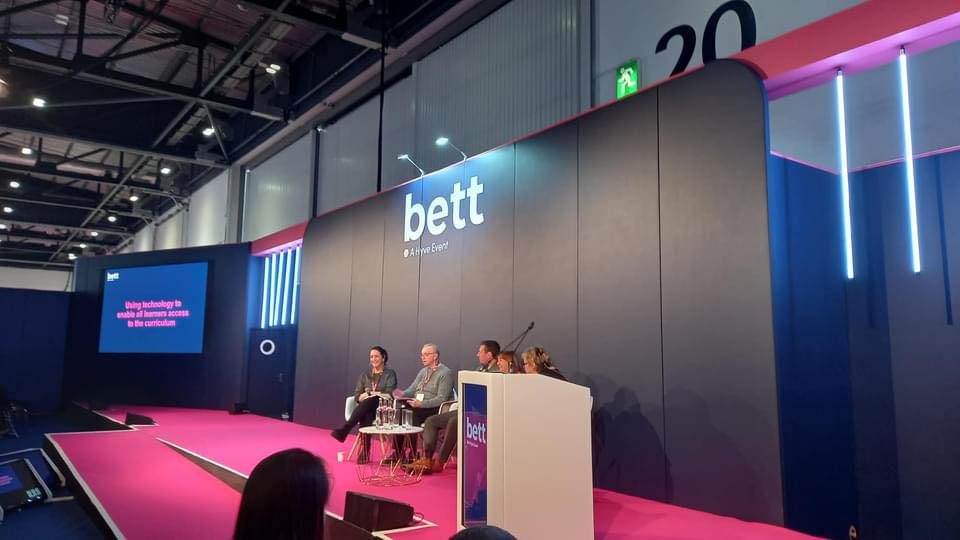
BETT 2024

Education Panel discussion on ” Using Assistive Technology in the Curriculum”

I can’t tell you how many years I have been coming to BETT but it’s more than a few years! This year was different in that unlike any other year two things happened.

  1. I was approached to give my advice about Accessibilty at the show to an independent consultant who was advising on this for all the BETT shows around the world.
  2. Networking – I kept bumping into colleagues I have worked with both in the past and present.

But what impressed me apart from those two things? Here goes:-

Scanning Pens of different types are appearing.

There is a new scanning pen ( not from scanning pens though) called Scanmarker Pro £199.06 . This scans text both online and offline, has a phonetic translator into different languages. A larger LCD display, It’s a touch screen and has a bluetooth and wifi connection as well. And more. I haven’t explored this yet so will write about it when I have.

Alos, the IRISpen Reader. Offers similar options including Photo translation, live recording and live translation. It also as a digital display and in effect is a portable scanner too with two versions the IRIS Pen Air which has the above functions and the cheaper IRISPen Reader which is a basic reader pen.

Cantoo Scribe is an innovative assistive technology software that can adapt content to suit student needs with all the access tools from text to speech to magnification and what excitied me the ability to OCR into PDF and magnify content such as a diagrams and geometric shapes and angles. Can’t wait to try this out too! I have one client I am excited to share this with. Designed by a French company I can see the potential.

A lovely set of people ( they come from Blackburn Lancashire!) not that I am biased have a comprehensive computer coding approach and they work in an inclusive way with pupils with special education needs. It was their first BETT and jamcoding offers pupils and teachers a tailored programme to help teachers understand and use programming even if you are not a computer buff to start with. It’s also got a CPD accreditation which you can put on on your CV. In essence it’s a curriculum.

Another company from abroad brought their dyslexia friendly teaching tool to the show C>onstructor has a visual and multisensory way of buidling words based on scientific research done on how the dyslexic brain works. It’s also able to build on visual memory to find the words you want.

On another front I was impressed with Digital Poverty Alliance who are trying to bridge the digital divide that exist in our national who refurbish and send out to schools and homes technology to help those who can’t afford it. Take a look at what they are doing at https://digitalpovertyalliance.org/ it’s really important and I was pleased to hear they work with AbilityNet too!

Back to software. Class is a virtual classroom that looks a bit like zoom but allows more accessible tools and perfect for Hybrid learning in drawing students and teachers together. It can also look and feel like Teams and this virtual classroom can work effectively in creating a more inclusive classroom. Especially important for us the UK when many pupils have not returned to the classroom since COVID. Take a demo at https://www.class.com/demo

Everybody counts is a online maths curriculum that is priced with school budgets in mind. There are characters of a diverse nature – culturally and disabled characters in the package.

Something I am definitely going to follow up is Teachers Talkk Radio. Over a million listeners this sounds a fantastic way to get information and get your messages out . Tune in at http://www.ttradio.org

Last I featured on Russell Prue’s BETT Radio this year. Take a look and listen at this website – go to Day 3 and 10 minutes in you should hear myself and Dave Presky give an interview about the Power of Assistive Technology film series. https://learnradio.net/home/bettradio/

http://bataonline.org/impact if you want to get your copies of the films designed to stimulate discussion in schools.

Awaiting our slot on BETT Radio