The Full Guide to Flying with a Disability

The guide is called “The Full Guide to Flying with a Disability” and offers plenty of valuable information such as:

Understanding the struggle disabled travellers face when they try to fly. Figures show 57% of these travellers said they had difficulty when accessing an airport or flying. 33% of people also said they were unhappy with the service provided for them at the airport.
The barriers disabled travellers face when they fly. Did you know that 26 wheelchairs are damaged across the world on a daily basis? and some of these can cost tens of thousands to replace!
Practical advice on the best places to visit as a disabled holidaymaker, how to book up a hotel room which is right for you and how to get special assistant on your flight if you need it. The resource also covers medical information which you might find useful.
Other helpful tips and resources that can make planning and taking a trip abroad safe and easy for those with disabilities.
Feel free to check-out the guide below:

“The Full Guide to Flying with a Disability”
https://www.parking4less.com/flying-with-a-disability/

Post -it’s

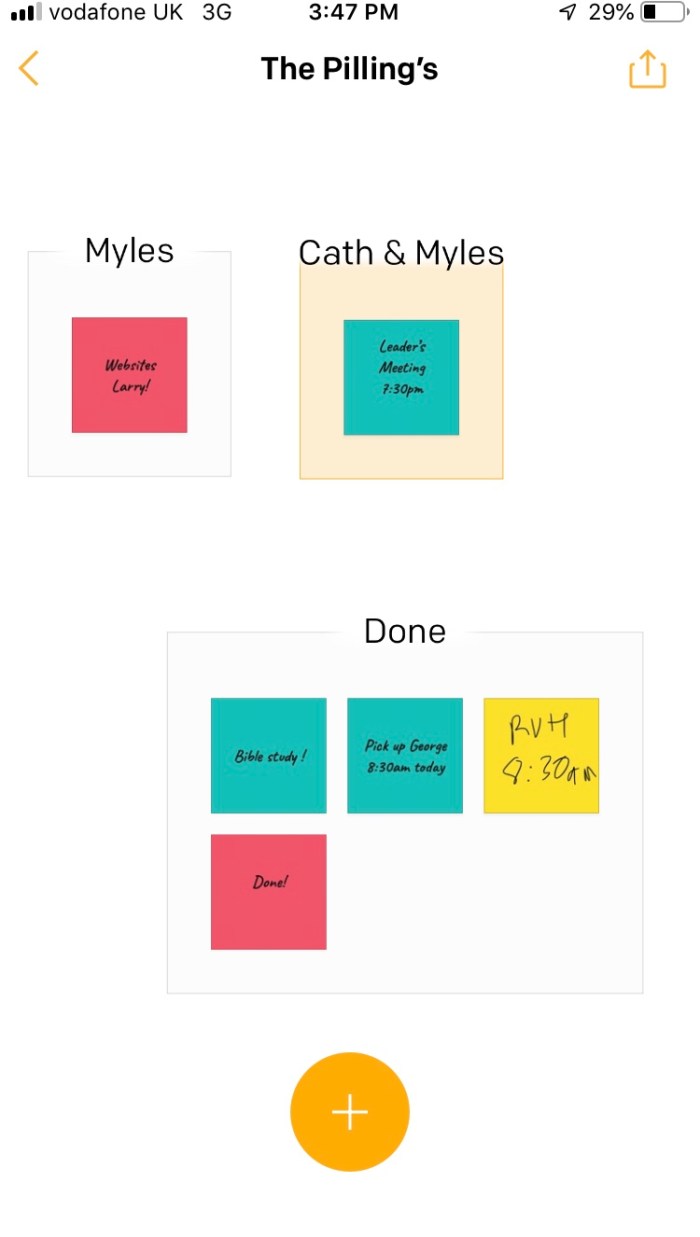
We have all used them and attached them to our fridge or computer. But now Post-it is an app. A very useful one has your post-it’s can be group. Great too for to-do- lists .

Now it’s gone digital you can dynamically make them, change them and swop them around .

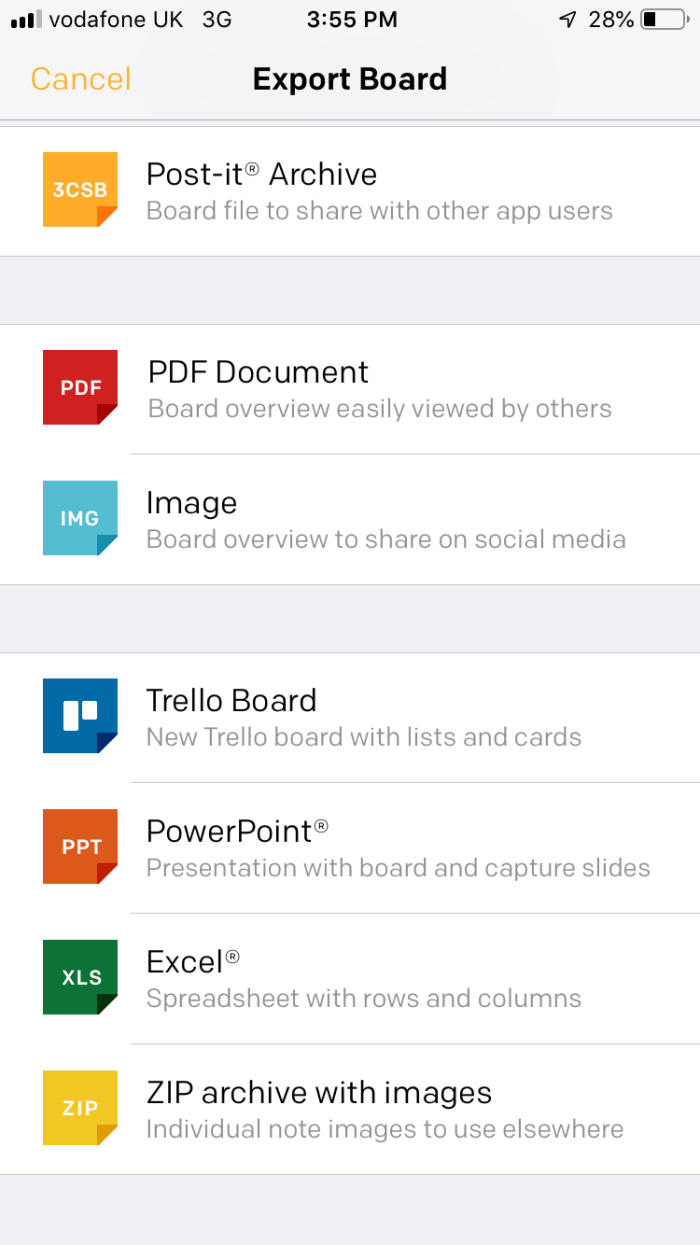
You can then have a variety of ways to output them as a pdf or a jpeg so that you store them or print out to work through. This would also be a way of brainstorming some ideas and moving them around or linking to groups and ideas. It’s very simple and very powerful. Especially for organization and forming ideas into groups .

I like the option to Trello as I use that for projects .

ABLE Summit 2019 in the Lebanon

If you have a spare hour you might like to watch this.

This was my talk earlier this year at the above conference. The first in the Lebanon!

Alexa Skill – Feed Bot


My blind client wanted to have read her local newspaper on her Echo Dot. After a direct talk with the newspaper and finding out that an audio service for the blind do a tape/usb stick of the paper which gives curated news I wondered if using an RSS feed would work as an alternative.

Simple answer is yes it would. Adding /feed.rss to the URL created a text feed of news. Now would this work on the Echo Dot? I created an account through https://servebot.net/settings/feedbot

You will need to link the account to your google account.

Next, I added the URL with feed addition. The Alexa skill is “Feed Bot – RSS Voice Reader ” which needs to be enabled and linked to your Amazon account. Once this is done you say ” Echo ( or whatever you use) ask Feed Bot to play my feed.” Then it should go through the news items listed on your website. You can also link Podcasts to it which is something Alexa is not particular good at but have not succeeded in that area yet.

You can add other feeds which are automatically updated as the website changes. This makes the process much more simpler to manage. Not as clear as a curated audio file but a good alternative and makes your site accessible for all. I would recommend that RSS feeds are put on your websites for specific content to be read out.

What is also quite cool is that if you stop and then restart it will go back to the last read news article . Articles are short and take a minute or so to read. No image codes or code read out.

NQT’s

After reading CanDoElla I felt it appropriate to give some information for NQT’s. As a part-time, external lecturer to Bath Spa University I often meet teachers to be and those working in education as fellow professionals. Without exception the knowledge of assistive technology or ICT SEN is little and sparse on the ground. Therefore I see it as vitally important that information gets out there. I am a Co-Director of the British Assistice Technology Association and our agenda is to raise the awareness of assistive technology in the UK. We run a free group for teachers and you are welcome to join . We run webinars and invite discussion about this topic of what new technologies can do to enable and empower pupils. To join click here

What can Assistive Technology/ICT SEND do?

Alternative methods of recording can enable dyslexics to have different methods to record with not just pen and paper which is an unsurmontable barrier for learning which makes the governments insistence on handwriting laughable if it weren’t so sadly tragic.

For those with  severe cerebral palsy it’s an impossibility to handwrite so using technology such as switches and joystick inputs along with eye gaze and other new technologies are opening up the world to many children who have been denied a means of expression by traditional means

For the autistic technology provides an avenue of communication that is non-threathening and motivating as well as finding a way into their special worlds which we should enter with their permission and not assume our approaches are welcome!

Finally, for those with sensory needs the advent of smart speakers are changing the leisure world of many blind or partially sighted users. Giving enjoyment and pleasure as well as communication means of accessing landlines and mobiles without the need for keypads.

Where do we find out about Assistive Technology/ ICT SEND ?

By looking at this site and others. I have a SENCO update page which would give NQT’s an avenue to find out about useful technology. I do seminars on “What you can get for little or no cost?” and ” Making the most of what you’ve got” as the reality at the moment is little finance in schools to buy things like eye-gaze systems. That may be changing let’s see. But systemic change in education will not occur by bringing in the bright shiny technology but by dedicated, hard working teachers like yourself who are committed to making a difference to a child;’s life no matter what the disability and barrier to learning they have.

Also, check out http://bataonline.org  There is a wealth of knowledge out there but since the demise of BECTA there hasn’t been a place for impartial advice and information to go to. BATA would like to be a current source as we represent suppliers and professionals. Also, take a look at NAACE’s website  They have useful information built up over years of advisory practise.

Finally, contact me here at this website. I’d be happy to come and speak to you and your staff team. I feel there is a huge skills gap in the kind of problem solving work I do as an Assistive Technologist working with schools and families. Sharing just small things of usefulness can change lives for the better. I am a firm believer of a can-do approach even in times of austerity you can still do something ( maybe not the best you could do but something postive!).

NQT’s should be energetic and willing to take on challenges being fresh out of training. If there is anything I can do to help you  – just ask!
Business Against Poverty

Screenshot 2019-07-28 at 08.21.56

Business Against Poverty are a charity that seeks to help business build with ethical values and standards. I have just joined having been inspired by a talk I heard at Corsham Referral Link.

If you feel, as I do, that we should conduct our business in a fair and equal way then consider becoming a member too.

https://businessagainstpoverty.com/

JAWS and Dolphin Guide

Here is some training I did yesterday evening:-

https://zoom.us/recording/play/XHfY8EUQlicgGIaY9_VyIqpYgnK1M1zu0ntqc67-xpApIKWm2fAXfU5T1E5zjERz

AT for Students

Nicole Reid has written an excellent article on the way AT is changing the face of education for students with additional needs. To read the article:-

https://universitybusiness.co.uk/Blog/technology-and-pedagogy-powering-21st-century-learning/

Meeting Julia @scanningpens

Always a delight to meet up with colleagues such as James Bowen and Julia Coulter as I did at nasen last week. Good to make new friends and share a passion for enabling and empowering students. I recommend you look at Julia’s website which gives you and idea of how she can help you https://juliasenco.wixsite.com/spld. Had a good chat with James about his passion to help young people too. There are many ways to help the dyslexic learner both with tools like scanning pens and having the right strategy to implement them. My experience of working with individual pupils they would prefer discrete means of help that doesn’t make them stand out. We all want to be like our mates don’t we?

Siri and emails

Siri is good at reading out a list of subjects and email but not so good at reading an entire email. When composing an email Siri will go through the steps but if you stop for a second it will finish composing. Literally you cannot take a breath.

Workaround

After the section on doing the writing you are given a choice to Send  or Edit or Add. It’s Add command that will allow you to finish an email of some length.


Speaking email is an app that does that job better. But for blind the sound supportive step-by-step guidance.  Here are some suggestions:-

Can Siri read emails? How to listen to emails on your iPhone – why Siri isn’t you best bet

  • Siri can read emails but has rudimentary email reading skills. Ask Siri “read me my emails” to hear your first 25 email subjects and senders. To get the full text of the email you need to ask “read my last email”, but you have to repeatedly push the listen button and ask for emails to be read out one at a time – using the same format, such as “read my second email”. There’s no way to have Siri speak emails continuously or read the next email or to interact in the context of the current email (eg archive or flag).

    Speaking Email on the other hand is specifically designed for reading out emails. Unlike Siri, it does not distract you with voice control or require your attention, but intead provides a great email client using your phone’s native text-to-speech capability and a focus on safety while driving.

    We tailor the experience to the medium and the context. For example with email we detect legalese disclaimers, email signatures and other common email clutter and skip over them. Siri won’t do this because it needs to handle a wide range of tasks.

    https://speaking.email/FAQ/3/can-siri-read-emails-how-to-listen-to-emails-on-your-iphone-why-siri-isnt-you-best-bet


The basics – commands that you can use with Siri

  • Call or FaceTime someone. Ex.: “Call Sarah,” or “FaceTime Mom.”
  • Start a call on speakerphone. Ex.””Call Mom on speaker.”
  • Call an emergency number. Ex.: “Call 911,” or “Call the fire department.”
  • Check voice mail. Ex.: “Do I have any new voice mail?” or “Play the voice mail from Mom.”
  • Text someone. Ex.: “Tell [name] I am on my way,” or “Tell [name] I am going to the store.”
  • Send an email. Ex.: “Send email to [name] about [subject] and say [message].”
  • Hear your messages or emails read aloud. Ex.: “Read my new messages,” or “Check email.”
  • Set a timer. Ex.: “Set the timer for 10 minutes.”
  • Check the weather. Ex.: “What’s the weather like today?” or “Do I need an umbrella?”
  • Check stocks. Ex.: “What’s Apple’s stock price?” or “Where’s the NASDAQ today?”
  • Conversions (of all kinds). Ex.: “How many cups are in a quart?” or “How many dollars are in a Euro?” or “How many pounds are in a stone?”
  • Calculate tips. Ex.: “What is a 20 percent tip on $68?”
  • Solve math problems. Ex.: “What is 234 divided by 6?” or “What is the square root of 16?”

Phone and settings

  • Take a picture.
  • Take a selfie.
  • Turn on/off [Wi-Fi, Bluetooth, Cellular Data, Airplane Mode, Do Not Disturb, Night Shift]
  • Increase/decrease brightness.
  • Open [app].
  • Designate contacts as relationships. Ex.: “My mom is Sandy Jacobsson,” or “Timmy Jacobsson is my brother.” Once a relationship is established, you can say relationships instead of names (e.g., “Call my brother,” instead of “Call Timmy Jacobsson”).
  • Adjust music volume. Ex.: “Adjust volume to 80 percent,” or “Turn the volume up/down.”
  • “How much free space to I have?” (Mac specific)

Scheduling and reminders

  • Schedule or cancel a meeting. Ex.: “Schedule a meeting with [name] tomorrow at 11:30 a.m.” or “Cancel my 5 p.m. appointment.”
  • What appointments do I have tomorrow?
  • Set location-aware reminders. Ex.: “Remind me to remember my keys when I leave,” or “Remind me to feed the dog when I get home.”
  • Find out the date and day of the week of holidays. Ex.: “When is Easter?” or “When is Labor Day?”
  • Set alarms. Ex.: “Set an alarm for 1 a.m.” or “Set an alarm for six hours from now.”
  • Delete/turn off all alarms. Ex. “Delete all alarms” or “Turn off all alarms.”
  • Check the number of days between dates. Ex.: “How many days until October 6?” or “How many days between April 3 and June 16?”
  • Find out what time it is in another city. Ex.: “What time is it in Tokyo?”

Search

  • Define [word].
  • What is a synonym for [word]?
  • What’s the etymology of [word]?
  • Find photos. Ex.: “Show me photos from last week,” or “Show me my selfies,” or “Show me photos from Tokyo.”
  • Search Twitter. Ex.: “What’s Kylie Jenner saying,” “Search Twitter for [keyword],” or “What’s trending on Twitter?”
  • Find specific notes or emails. Ex.: “Find my note about [keyword],” or “Find emails about [keyword].”
  • Find your friends (if you have “Find My Friends” set up). Ex.: “Where is Ron?” or “Who is near me?”
  • Find pictures of [keyword].
  • Find apps. Ex.: “Get the Twitter app,” or “Search the App Store for word games.”
  • Search for Word/PDF/PowerPoint/etc. in my Download/My Documents/etc. folder. Ex.: “Show all PowerPoint presentations in my school folder.” (Mac specific)

Navigation

  • Take me home.
  • What’s traffic like on the way home?
  • Find [driving, walking, transit] directions to [destination].
  • How do I get to [destination] by [walking, bus, bike, car, train, etc.]?
  • Where is [business name]?
  • Where is the nearest [business type]?
  • Find out how long until you arrive. Ex.: “What’s my ETA?”
  • How much does gas cost right now?

Entertainment

  • Sports updates. Ex.: “Did the Tigers win?” or “What was the score the last time the Tigers played the Yankees?” or “How did the Tigers do last night?”
  • Info about a sport or sports team. Ex.: “What basketball games are on today?” or “Get me college football rankings” or “Show me the roster for the Red Wings.”
  • Find movie times and locations. Ex.: “What’s playing at Regal L.A. Live?” or “What are some movies playing near me?” or “Is [movie name] playing near me?”
  • Find out what song is playing in the room (through Shazam). Ex.: “What song is this?”
  • What’s the synopsis of [movie name]?

Music and Apple Music

  • Basic controls: Play, pause/stop, skip/next, play previous song.
  • Play [artist] or [song name] or or [album].
  • “Play some music” to begin a custom Apple Music radio station
  • ‘Like’ the song you’re listening to. Ex.: “Like this song.”
  • Shuffle my playlist.
  • Choose the next song. Ex.: “After this, play Wildest Dreams.”
  • Find chart-toppers from certain years. Ex.: “Play the top songs from 2013.”
  • Play songs that are similar to the one you’re listening to. Ex.: “Play more like this.”
  • What song is this?
  • Buy this song.

Travel

  • Check flight status. Ex.: “Check flight status of [airline and flight number]”
  • Find restaurants and make reservations. Ex.: “What’s a good Chinese restaurant near me?” or “Make a reservation at Baco Mercat for 7 p.m.” or “Find a table for six in San Francisco tonight.”
  • Find a business’ hours. Ex.: “How late is [business name] open?” or “Is [business name] open right now?”
  • Learn about the area you’re in. Ex.: “What’s the nearest museum?” or “Where am I?” or “What bridge is this?”

Translation

Starting with iOS 11, Siri can translate five different languages: French, German, Mandarin, Spanish and Italian. Using the new feature is as easy as asking, “How do you say [word or phrase] in [language]?” For example: “How do you say where is the bathroom in French?”

Siri will then read the translation out loud. You’ll see the text on the screen alongside a play button, which you can use to replay the translation.

Third-party apps

Beginning with iOS 10, developers have been able to integrate their apps into Siri. Meaning, you can use voice commands to do things such as send WhatsApp messages, request an Uber or send money via Square Cash. You can view and customize which apps are granted access to Siri on your device under Settings > Siri >App Support.

  • Pay Joe 10 dollars with Square Cash/PayPal/etc.
  • Send a message using WhatsApp/LinkedIn/Skype/WeChat/etc.
  • Call me an Uber/Lyft/etc.
  • Show me photos in [app name].
  • Show me pins/creations in [app name].

Random tips and tricks

  • Find out what airplanes are currently flying above you. Ex.: “What airplanes are above me?”
  • Roll a die or roll two dice.
  • Flip a coin.
  • What is your favorite color?
  • Tell me a joke.
  • What does the fox say?
  • Knock knock.
  • Who’s on first?
  • Why did the chicken cross the road?
  • What is zero divided by zero?
  • Learn how to say my name.